 Real Journey Travels
Last modified August 17, 2026
Remember when planning a trip meant juggling a dozen tabs, scribbling down notes, and endless emails? Claude Cowork flips travel planning on its head, turning it into an automated, smart system that handles everything—research, itinerary building, booking coordination, and organizing your travel docs—all in one place.
This AI desktop agent isn’t just another chatbot. It actually takes care of the grunt work for you.
Maybe you’re mapping out a solo getaway or wrangling the chaos of a big family vacation. Claude Cowork automates those tedious tasks that usually eat up your time.
It connects straight to your files, email, and calendar, so it can pull together briefings, track reservations, and even tweak plans when things inevitably change. Here’s what most folks overlook—it learns from each trip, so it gets better at matching your preferences every time.
This guide will walk you through setting up Cowork for travel planning, from the basic install to those advanced features that’ll leave you wondering how you ever survived trip planning before.
Key Takeaways
- Claude Cowork automates travel research, itinerary-making, and booking coordination in one spot
- The system gets smarter about your planning preferences every time you use it
- It hooks into your email, calendar, and scheduled tasks for hands-free travel management
Getting Started: Setting Up Claude Cowork for Travel Planning

Before you dive into your next adventure with Claude Cowork, make sure you’ve got the right tools and a subscription. Setup only takes about 10 minutes, but you’ll need a paid plan to unlock everything the desktop app can do.
Installing the Claude Desktop App
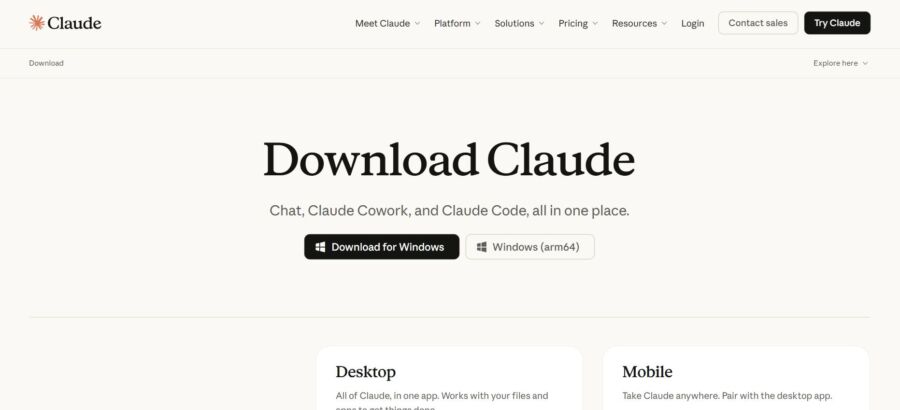
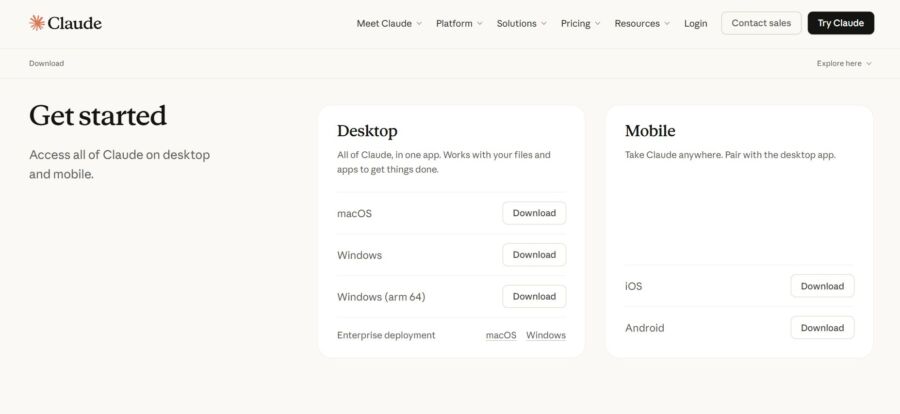
You can’t use Claude Cowork in your browser—it’s desktop-only. Head over to claude.com/download and grab the installer for macOS or Windows (x64 only, so double-check if you’re on Windows).
After downloading, just run the installer like you would for any app. Sign in with your Anthropic account. If you don’t have one, you’ll need to make it first.
Once you’re in, look for the Cowork tab at the top. That’s where the real travel magic starts. Just a heads up—you’ll need a paid plan to actually use Cowork, so let’s talk subscriptions.
Choosing the Right Claude Subscription
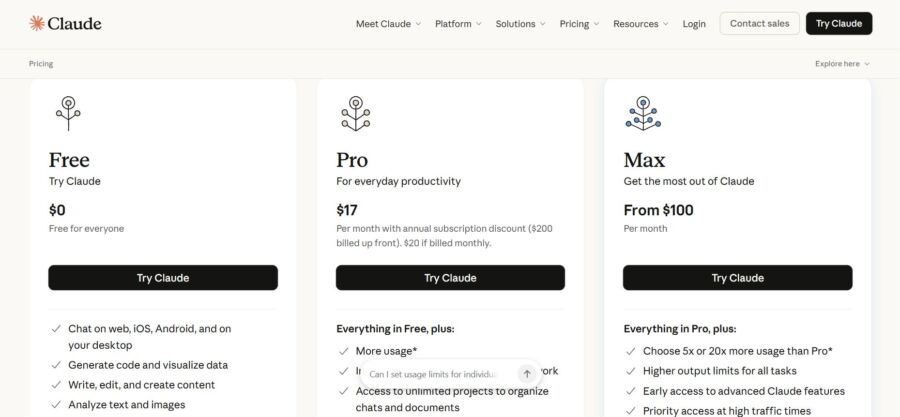
The free Claude plan doesn’t give you access to Cowork at all. You’ll want Claude Pro, Max, Team, or Enterprise to unlock it. For most solo travelers and families, Claude Pro is the sweet spot.
I upgraded to Pro just for travel planning after seeing how much time it saves. The subscription gives you full access to the Claude Desktop app’s Cowork mode. That means you can work with local files and connect to Gmail or Google Drive.
If you’re planning group trips or work for a travel agency, maybe the Team plan is worth it. But honestly? Pro has handled everything I’ve thrown at it for my own trips.
When you open Cowork for the first time, you’ll need to let it access a specific folder on your computer. Don’t just hand over your whole Documents folder—set up a dedicated spot like Travel-Planning-2026.
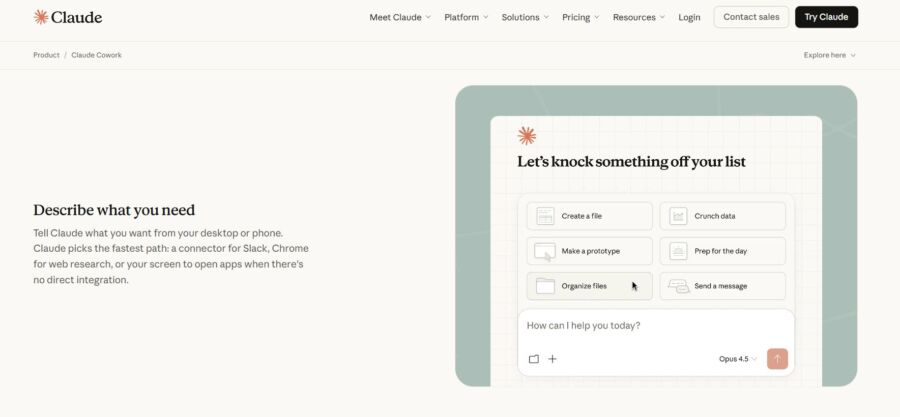
The interface feels a lot like regular Claude chat, but here’s the key difference: Cowork shows you a plan before it touches your files. You approve every step, which is a relief when you’re dealing with important travel docs and reservations.
There’s a text box at the bottom where you tell it what you want. Be specific. Instead of “help me plan my trip,” try “organize my Paris hotel confirmations and create a day-by-day itinerary based on the restaurant list I saved.”
Building a Solid Travel Planning Foundation

Creating Effective Context Files
Context files are where you stash info that Claude Cowork should always remember for travel planning. Think of them as your travel personality cheat sheet.
Create something like travel-preferences.txt in your context folder. List dietary restrictions (not just “vegetarian”—maybe “pescatarian who gets queasy on boats”), your real daily budget, how you feel about driving, and whether you’re an early riser or need coffee before you can function.
I learned the hard way when Claude kept suggesting 6 AM hikes because I never mentioned I’m basically a zombie before 9. Now my file says “no activities before 9:30 AM” and “prefers lunch spots with outdoor seating.”
Add your kids’ ages and their actual interests too. Don’t just write “family friendly.” One family loves museums, another wants water parks. Be specific—think nap schedules, picky eaters, or if someone gets carsick after 45 minutes.
Using Global and Folder Instructions

Global instructions cover everything Claude Cowork does, but for travel planning, you’ll want folder-level instructions.
Create a .claudemd file in your travel folder. Add stuff like “Always include parking info and whether reservations are needed” or “Suggest backup indoor activities for every outdoor plan.” This is where your non-negotiables go.
Here’s a tip most people miss: tell Claude how you want it to research. I add “Look for recent local blog posts and community tips, not just top Google results.” The Family Trip Planner plugin even searches food blogs and community calendars instead of just spitting out Trip Advisor’s usual suspects.
Set your budget formatting preferences here too. Want everything in a table? Need kid prices in a separate column? Just say so.
Structuring a Travel Planning Claude MD File

If your planning file isn’t structured, you’ll end up with a mess—trust me, I’ve been there.
Start with a header: travel dates, destination (or “TBD”), number of travelers, and total budget. Then break it down into Destination Research, Itinerary, Logistics, and Packing.
Under Destination Research, I usually have Claude pull together 2-3 options with a “vibe check”—is this place actually what I want? No point in a beach vacation if I burn after ten minutes in the sun.
Your itinerary should be day-by-day, with times. Don’t just jot “morning: museum, afternoon: park.” Real planning means knowing the museum opens at 10, takes two hours, and there’s a taco spot nearby that shuts at 3.
Keep a Running Questions list at the bottom. As you plan, stuff will pop up (Do we need an international driver’s license? Is there cell service?). Jot them down so Claude can tackle them in one go instead of breaking your flow.
See Related: How to Use ChatGPT to Find Cheap Flights: Pro Tactics & Smart Hacks
Harnessing Automations for Routine Travel Tasks
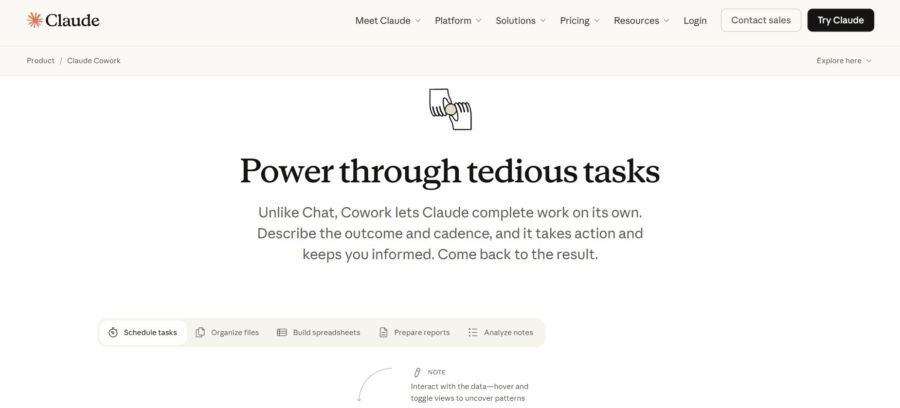
Claude CoWork handles all that tedious prep that usually eats up your pre-trip hours. You can set up automated workflows for building itineraries, syncing travel dates to your calendar, and wrangling all those confirmation emails and boarding passes that get lost in your inbox.
Automating Itinerary Creation
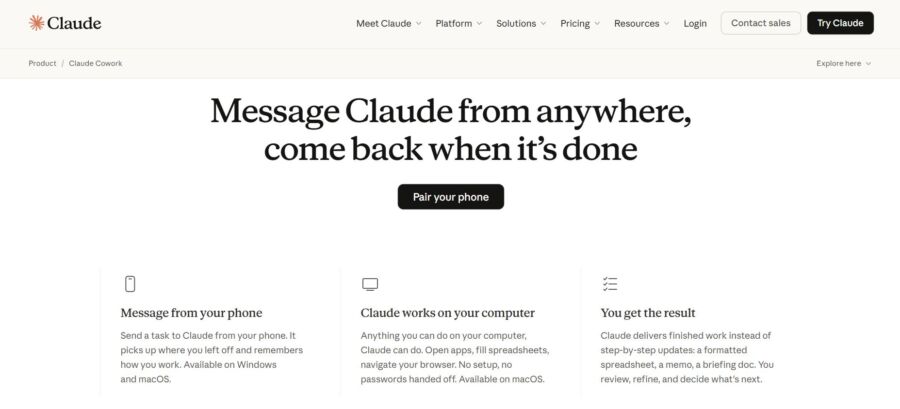
Instead of copying flight times and hotel addresses by hand, let Claude CoWork handle the grunt work by pulling details straight from your emails and browser tabs. It scans your booking confirmations and grabs what matters.
The AI then lays out everything in a clean, readable itinerary. If you ask it to organize your Barcelona trip, it’ll line up flights, hotel check-ins, restaurant reservations, and museum tickets in order.
What really saves time? Comparing options.
If you’re torn between three hotels, Claude CoWork can pull reviews, prices, and locations, then lay them out side-by-side in a spreadsheet. I find this super handy for budget planning, since the AI does all the math across different scenarios—no more fiddling with a calculator.
Scheduling Calendar Events and Reminders
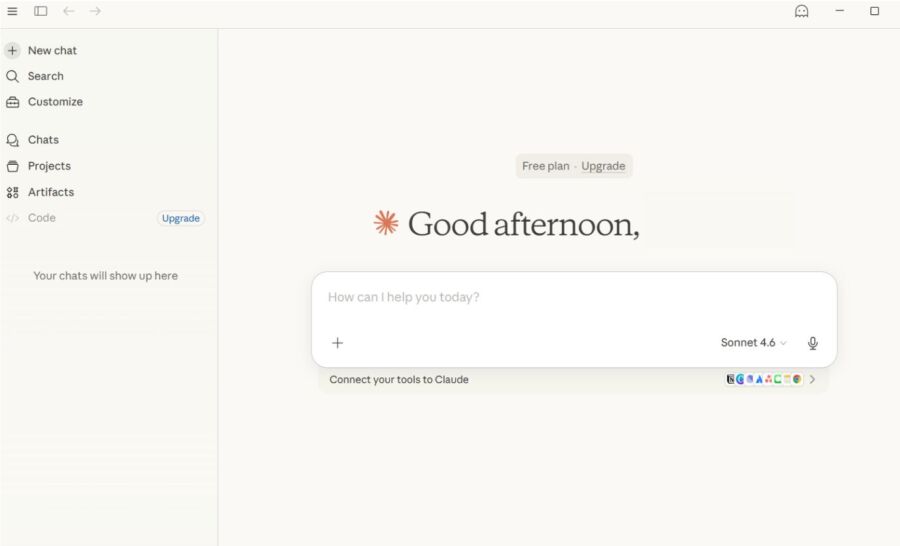
Once your itinerary’s done, you’ll want those dates blocked off in your calendar. Claude CoWork syncs with your calendar app and creates events automatically from your plans.
But it does more than just add “Flight to Rome” on June 15th. You can tell it to set reminders 24 hours before each flight, or ping you to check in online the second the window opens. It’ll even add buffer time for airport security and note your hotel’s check-in time.
If plans change, it updates everything for you. Reschedule that dinner and Claude tweaks the calendar event—no need to open the app again.
Streamlining Document and File Management
Travel generates a ridiculous amount of digital paperwork. Boarding passes, hotel confirmations, rental car vouchers, insurance PDFs—they pile up fast.
Claude CoWork sorts out your messy folders by automatically organizing files into trip-specific folders. You can have it make a “Portugal 2026” folder and move everything related there. It recognizes confirmation numbers, dates, and keywords to file things where they belong.
You can also ask it to rename files so they actually make sense. Instead of “download_558392.pdf,” you’ll get “Lisbon_Hotel_Confirmation.pdf.” When you’re standing at the rental car counter, that kind of organization is a lifesaver.
Integrating Plugins and Connectors for Seamless Coordination

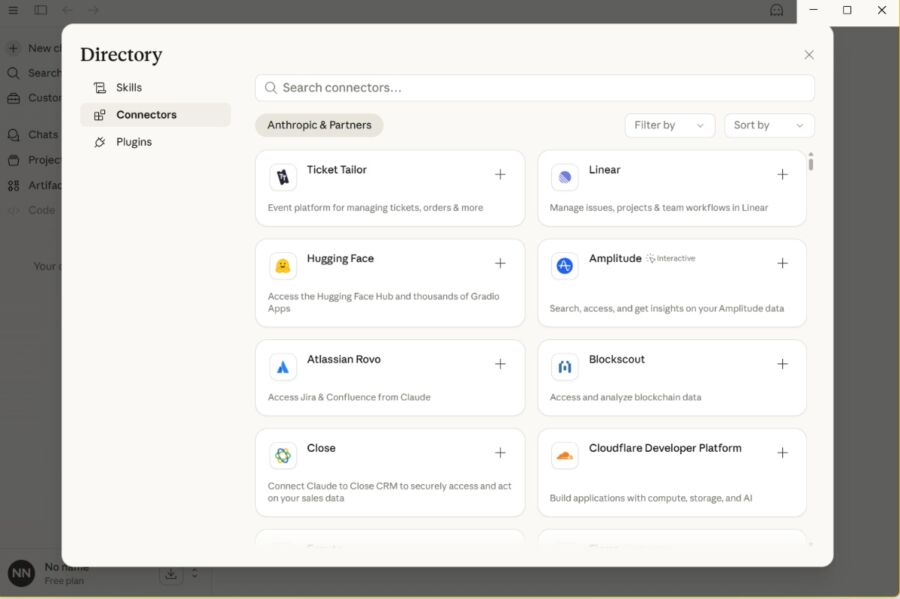
Claude Cowork’s plugins bundle up skills, connectors, and sub-agents so you can handle travel coordination without setting things up from scratch every time. When you connect your calendar, email, and workspace tools, Claude gets instant access to your schedule, bookings, and shared itineraries.
Connecting Google Calendar and Email
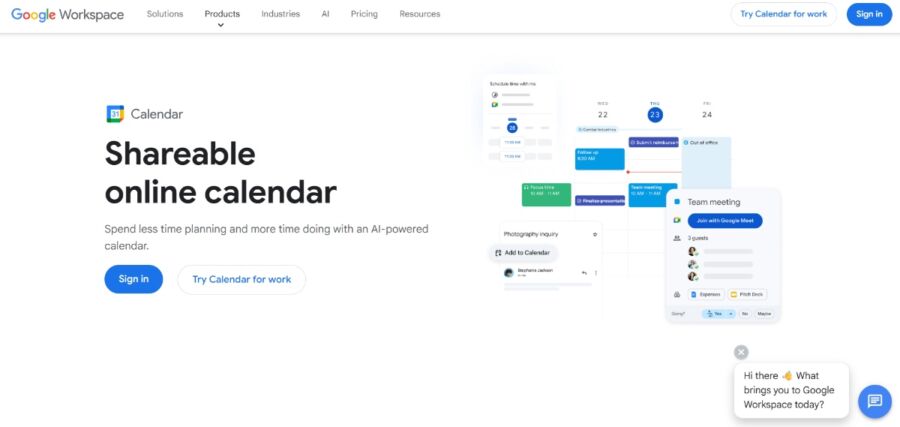
Your travel plans end up scattered between calendar events and a mess of confirmation emails. Claude needs both to keep you from double-booking Barcelona while your daughter’s recital sneaks up on you.
Hook up your Google Calendar using the Microsoft 365 connector (yep, it covers Google stuff too). Head to the Cowork tab, tap Plugins in the sidebar, and add the Productivity plugin. This bundles Slack, Notion, and Microsoft 365 connectors in one place.
After you connect, Claude checks your existing commitments. Ask, “When can I fit a 5-day trip to Iceland in June?” and it actually scans your calendar instead of just guessing from what you tell it.
Email integration pulls flight confirmations, hotel bookings, and car rental receipts for you. No need to forward every little thing or copy-paste confirmation numbers. Claude reads your inbox and grabs the travel details it needs.
Using Slack, Notion, and Drive Integrations

Group trips? They get chaotic fast. Someone books flights, someone else finds hotels, and your cousin spams restaurant links across three apps.
The Productivity plugin’s Notion connector builds a shared travel database for everyone. Claude sets up itineraries, tracks who paid for what, and keeps packing lists up to date—even if someone sneaks in “don’t forget the portable charger” at 2am.
Slack integration keeps your group from drowning in endless threads. Claude posts itinerary updates to your #tokyo-trip channel and answers questions like, “What time’s our Airbnb check-in?” so you don’t have to scroll through old messages.
Google Drive links up for all those shared docs—visa forms, insurance PDFs, scanned passports. Claude checks these files when planning, and might even remind you, “Hey, your travel insurance doesn’t cover scuba diving,” before you book that reef tour.
Managing Permissions for Secure Travel Planning
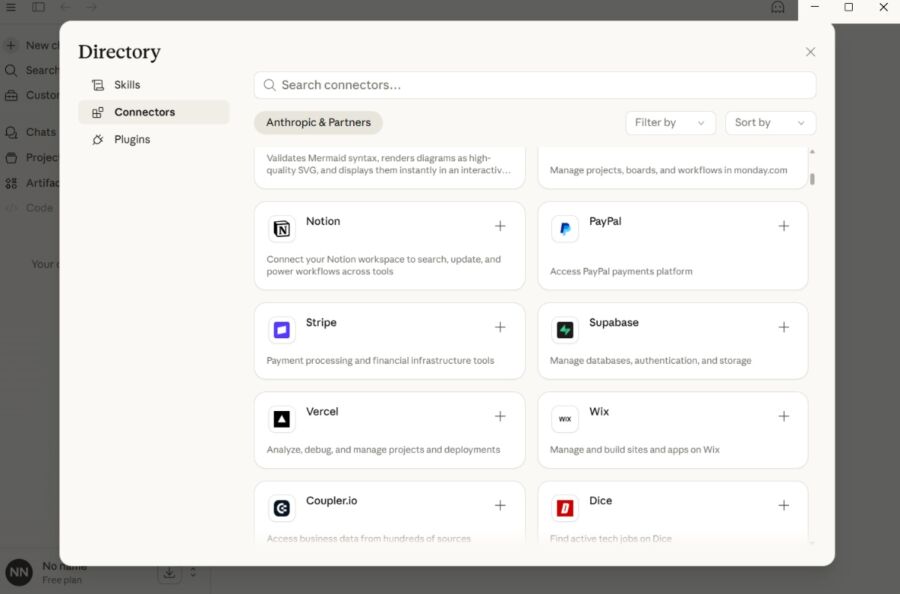
You’re sharing sensitive stuff with Claude—passport numbers, credit cards, home addresses. You need to manage permissions carefully.
Only install connectors you actually need for your trip. A solo weekend doesn’t need Slack, but a 12-person wedding does.
Stick to read-only access when you can. Claude checks your calendar but doesn’t need to delete or create events. Same with email—it reads confirmations but shouldn’t send bookings for you unless you say so.
Set folder-specific permissions in Drive and Notion. Make a “Travel Planning 2026” folder and only let Claude access that. Your work docs stay private.
Check connected apps in your Google account every month. Revoke access for finished trips—Claude doesn’t care about your Cancun 2025 plans anymore.
See Related: International Travel Smartphone Hacks: 7 Secret Tips to Save Money and Stay Connected Abroad
Advanced Capabilities: Multi-Destination and Family Travel Planning

Claude Cowork actually handles complex travel stuff that most tools just can’t. It balances different ages, manages several trip options at once, and builds smarter recommendations by learning from your past adventures.
Organizing Group and Multi-Generational Trips

Trying to plan for energetic kids and grandparents at the same time? It’s a headache. Claude Cowork makes it easier because you can give it specific needs for each traveler—mobility, food restrictions, activity types—and it finds options that don’t make anyone sacrifice their whole vacation.
If you’re juggling multiple itineraries, the AI suggests walkable neighborhoods for seniors and lets younger folks branch out. It’ll spot hotels with elevators, nearby clinics, and restaurants with early hours but real local food.
Maybe you want activities that everyone actually enjoys instead of just tolerating. Claude’s extended thinking helps decide if a cable car beats a walking tour when you’ve got both a 9-year-old and relatives in their 70s.
Coordinating Multiple Itineraries in Parallel

Why research Guatemala one week and Costa Rica the next? Claude Cowork lets you work on several possible trips at the same time. This is a lifesaver when you’re waiting on work schedules, coordinating with other families, or just can’t pick between totally different styles.
The platform compares logistics, timing, and fit for all your options, pulling in your travel preferences. Maybe you’re weighing a Mexico beach resort, a Portugal culture tour, and an Iceland adventure—all tailored to your family.
Claude analyzes flights from your home airport, estimates realistic budgets, and points out issues you might miss. Iceland in March? That could mean wild weather and delays, while Portugal has better transit flexibility. The AI juggles these details all at once so you don’t have to.
Leveraging Learning from Past Trips

Every trip you take teaches Claude something new for next time. After you get home, you can feed real feedback into Claude Cowork—what rocked, what you’d skip, which logistics worked, and what family drama you didn’t see coming.
This kind of learning system just gets smarter. If the Alps in August meant heat stroke, Claude remembers that for your next Europe trip. If car rentals beat trains for flexibility, Claude will factor that in next time.
You’re basically building your own travel brain that knows your family better than any booking site. Claude applies lessons from Colombia to Morocco, or from Italy to Japan. It’s not just a notes app—it’s active reasoning about what actually works for you.
Optimizing Workflow: Claude Pro Features and Best Practices
Claude Pro unlocks extended thinking and priority access during busy times. Structured workflows help you pull scattered research into real itineraries. The audit features catch booking conflicts before they cost you money.
Unlocking Pro-Only Capabilities
Claude Pro gives you extended thinking—honestly, that’s huge if you’re juggling multi-city trips. I’ve watched it untangle complicated routes—like finding the best way between three European cities with weird airline alliances—that the free version just can’t.
You get priority access at peak times too. And honestly, when you’re scrambling to finalize plans at 9 PM on a Sunday, that can save your sanity.
Higher usage limits let you upload whole guidebooks, old itineraries, and flight spreadsheets without running into annoying limits. I once dumped a 50-page PDF into it and asked for just the restaurants open on Mondays—hours saved, no joke.
One thing people overlook: Claude Cowork saves your travel instructions. Set it up once with your quirks (aisle seats, veggie meals, budget hotels near transit), and it remembers for every future trip.
Efficient Workflow Strategies for Frequent Travelers
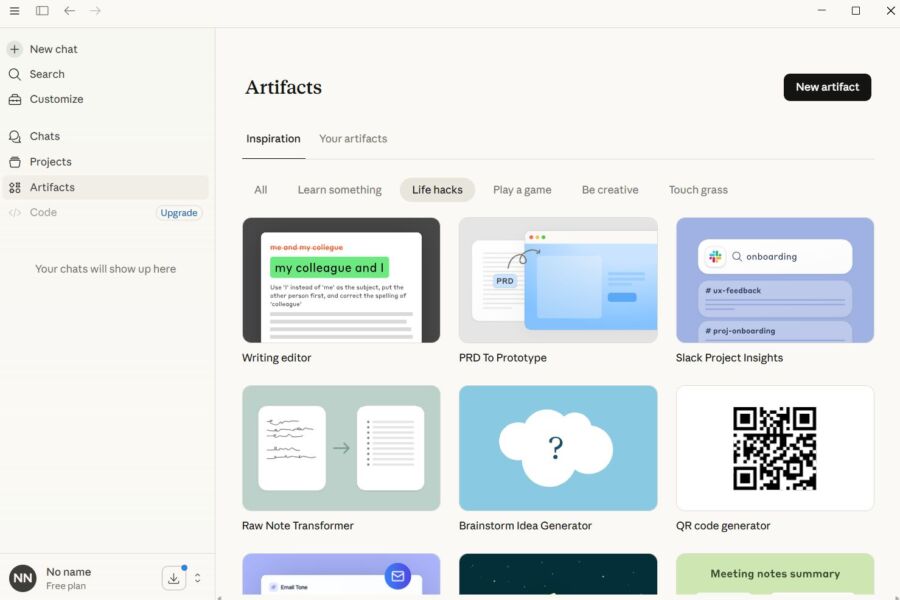
The main workflow is perfect for trip planning. Start by giving Claude your limits—dates, budget, must-sees, travel pace.
Then ask for three itinerary styles. Maybe one is museum-heavy, another is all about food, and the third mixes both. Pick what you like from each, and Claude refines it.
Here’s my actual process: make a folder in Claude Cowork for each trip. Drop in flight, hotel, and restaurant confirmations as you get them. Schedule a daily check to review and flag conflicts.
Your travel stack should include:
- Global instructions with your traveler profile
- Folder rules for each destination
- Scheduled tasks for price tracking
- Context files with loyalty numbers
But really—don’t overcomplicate it. Start with one trip, see what sticks, then tweak as you go.
Visualizing and Auditing Your Travel Plans
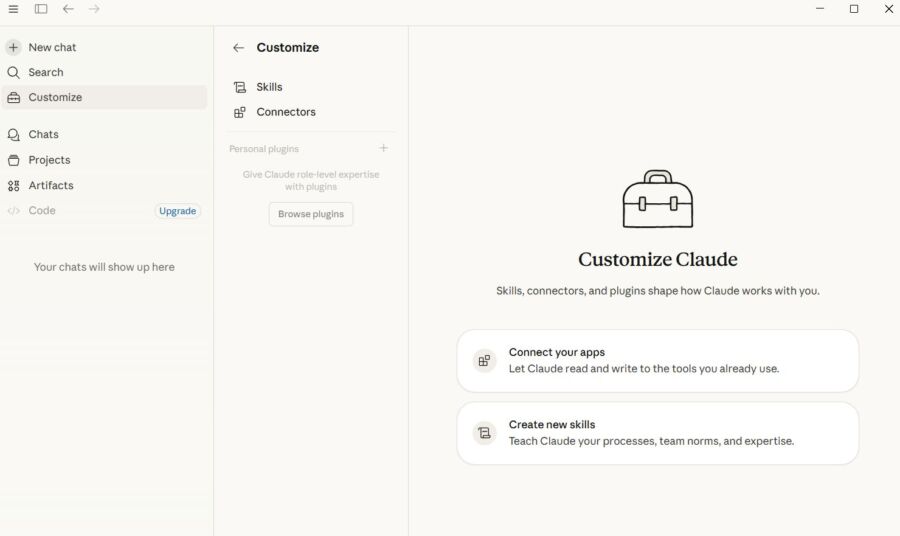
The audit skill in Claude Cowork is super underrated for travel. Ask it to scan your whole itinerary for impossible connections, double bookings, or days where you somehow scheduled eight hours of stuff on opposite sides of town.
It once caught a big mistake for me: my train from Rome to Florence left 20 minutes before my museum tour ended. The audit flagged it right away.
Make a table view of your daily schedule—columns for time, place, activity, and travel time between. You’ll instantly spot gaps and overlaps.
Key things to audit:
- Travel time between activities (Google Maps is way too optimistic)
- Restaurant bookings vs attraction hours
- Jet lag on arrival days
- Backup plans for weather
Ask Claude for a day-by-day map view too. Not a real map, but a text breakdown showing which neighborhoods you’re in. You’ll notice if you’re zig-zagging across town for no reason.
See Related: Solo Travel Hacks for the Best Winter Escapades
Frequently Asked Questions
Travel planning with Claude Cowork brings up all sorts of questions about prompts, data organization, and getting outputs that actually work. Let’s get into how to turn scattered travel research into real itineraries you can trust.
What’s the best way to feed flights, hotel options, and must-see lists into an AI so it turns them into a realistic day-by-day itinerary?
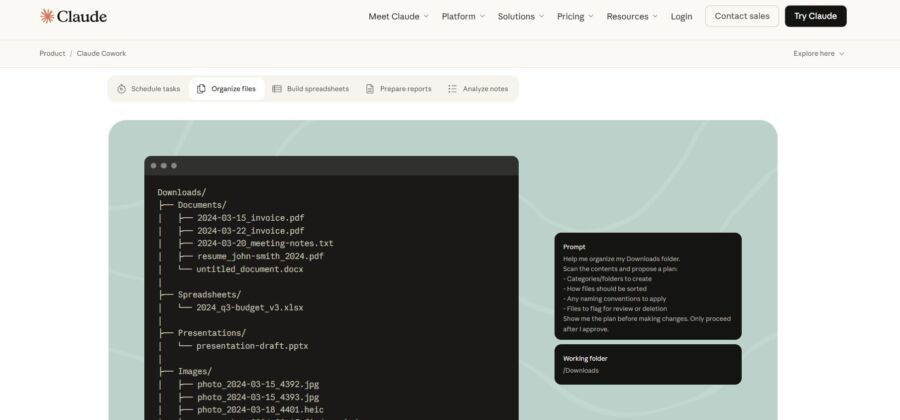
Start by making a folder structure before you even open Cowork. Create separate subfolders for flights, hotels, attractions, and any confirmation emails or PDFs you’ve already got.u003cbru003eDrop your flight screenshots or booking emails into the flights folder. Put hotel options—even if they’re just URLs in .txt files—into accommodations. Your must-see lists can be plain text or even screenshots from blogs.u003cbru003eThen just point Cowork at the main folder and use a prompt like: u0022Read everything in these subfolders. Build a day-by-day itinerary that fits my flight arrival time, hotel location, and the attractions I’ve flagged. Include travel time between spots and suggest meal breaks near each activity.u0022u003cbru003eThe big difference from just chatting with AI? u003ca href=u0022https://claude.com/resources/tutorials/cowork-onboarding-guideu0022u003eCowork reads your actual filesu003c/au003e and builds real documents you can edit. You get a proper .docx or .xlsx file with your schedule, not just a chat transcript.
How can I get an itinerary that balances u0022big sightsu0022 with neighborhood time, meal breaks, and transit time like a local would plan?
Be specific about what u0022realisticu0022 means for you when you prompt Cowork. Most people skip over pacing, then wonder why their itinerary tries to squeeze in seven museums after lunch. It’s just not fun.u003cbru003eTry saying something like: u0022Create a 5-day itinerary that limits major attractions to two per day. Schedule 90-minute lunch breaks in local neighborhoods, not tourist traps. Add 30-minute transit buffers between activities. Flag at least one ‘walk and explore’ block each day where I have no set plans.u0022u003cbru003eHonestly, when I ask for neighborhood picks by meal, I get better results than just asking for restaurant names. That way, you end up wandering and discovering, instead of feeling stuck with a dinner reservation you might not even want.u003cbru003eWant to dodge the classic tourist mistakes? Say: u0022Show me which attractions are walkable from each other and group those together. Tell me which days will have the most transit time.u0022
How do I ask an AI to compare two routes or multi-city options using clear trade-offs like cost, jet lag, and travel time?
Set up your comparison as a decision matrix. Just jot down your options in a text file—maybe Rome-Florence-Venice versus Rome-Amalfi Coast-Venice.u003cbru003eThen prompt: u0022Compare these two itineraries for total travel time between cities, estimated transportation costs, number of hotel changes, time zone shifts, and hours spent in transit versus at destinations. Put it in a side-by-side table and recommend based on my preference for fewer hotel changes.u0022u003cbru003eBut here’s a thing people miss: you need to tell Cowork what matters most to you. If you care more about experiences than saving money, say so. If jet lag hits you hard, make that a big factor.u003cbru003eI always add: u0022Point out any hidden downsides for each option that I might not notice in a basic pros-and-cons list.u0022 It’s wild how the u0022betteru0022 route sometimes means you arrive too late for hotel check-in or miss that one museum you cared about.
This is where u003ca href=u0022https://techpp.com/2026/03/05/claude-cowork-use-cases/u0022u003eCowork’s research skillsu003c/au003e really shine. You can ask it to gather constraint info you’d otherwise spend ages digging up.u003cbru003eTry: u0022Research closure schedules for these five Barcelona attractions during my travel dates. Check for local holidays, religious events, or special happenings that could change opening hours. Flag anything that needs reservations and tell me the booking window.u0022u003cbru003eWhen you pair this with your draft itinerary, it gets even better: u0022Cross-check my planned itinerary against these constraints. Show me which days won’t work and suggest fixes.u0022u003cbru003eOne thing I learned the hard way after a wasted Tuesday in Rome: add this—u0022Find the most common closure day for museums and restaurants in this city, and check if I accidentally planned big stuff on that day.u0022
How can I have an AI build a flexible plan with backup indoor options and current health/travel advisories in mind?
Kick things off by mentioning the weather in your instructions. Try something like, u0022I’m traveling to Seattle in November. For each day, suggest a main outdoor activity and a backup indoor option in case it pours.u0022u003cbru003eIf you need u003ca href=u0022https://mindwiredai.com/2026/03/29/claude-cowork-desktop-agent-guide/u0022u003ehealth and travel advisoriesu003c/au003e, just ask Cowork to dig up the latest details: u0022Check current u003ca href=u0022https://www.realjourneytravels.com/forum/travel-advice/u0022u003etravel advisoriesu003c/au003e for Japan, including COVID-19 entry rules, recommended vaccines, and any local health stuff I should know. Give me a quick rundown of what I need to prep before leaving.u0022u003cbru003eWhen you want flexibility, tell the AI to lay out a 7-day plan with three can’t-miss activities and four more that you can swap around based on weather, how you’re feeling, or if something cool pops up last minute.u003cbru003eHonestly, I always throw in something like, u0022For each day, show which reservations I have to make ahead of time and which things I can decide on the fly. Clearly mark anything that’s weather-dependent.u0022u003cbru003eThe real magic? Ask Cowork to save everything as an editable spreadsheet with columns for your main plan, backup, whether it’s weather-dependent, and if you need to book in advance. You won’t get stuck with a rigid plan—it’s a living tool that actually keeps up with your trip.


