
Last modified January 30, 2026
Getting lost in a foreign country without internet access? Yeah, it’s stressful. But Google Maps can actually work without a connection—if you set things up before your trip.
Download specific map areas to your phone before you leave home, and you’ll be able to search for places, get turn-by-turn directions, and follow your GPS location even with no data or wifi. I’ve pulled off this trick everywhere—remote mountain roads in Albania, Tokyo subway tunnels, you name it. It’s bailed me out when my data died or when I just refused to pay for roaming.
Setting it up only takes a few minutes. You’ll want to know which areas to download, how much space you’ve got, and what works offline (and what doesn’t).
Key Takeaways
- Download map areas before your trip to avoid internet or data charges
- Offline maps give you GPS tracking and turn-by-turn directions, but you’ll need to update them regularly
- Managing storage and understanding offline limits make travel planning smoother
Why Use Google Maps Offline for Travel

Downloading maps ahead of time saves you from surprise charges, helps you stay safe in unfamiliar places, and keeps your phone battery alive when you really need directions.
Avoiding Roaming Charges and Data Surprises

International roaming charges can destroy your travel budget way faster than you’d expect. I’ve heard too many horror stories about travelers coming home to $500+ phone bills just because they forgot to turn off data roaming.
Using Google Maps offline completely dodges that mess. Your phone doesn’t need to touch foreign networks to load maps or routes, so you’re safe from navigation-related roaming fees.
Even if you’ve got an eSIM with a data plan, offline Google Maps stretches your data further. Map data eats up more bandwidth than you might think, especially in dense cities. Download maps on hotel WiFi and save your data for messaging family or searching for dinner spots.
And honestly, offline maps help even with domestic travel. Rural areas can have terrible coverage, and some carriers sneak in extra data fees in certain regions. If your maps are already on your phone, you’re not stuck hunting for a signal when you’re lost on a back road.
Essential Safety and Peace of Mind

Getting lost in a strange city? That’s a real safety risk. Standing still, staring at your phone, looking totally confused—you might as well wear a sign that says “tourist.”
Offline Google Maps fixes that. Directions pop up instantly, even with zero cell service. You look like you know where you’re going, not like you’re about to get scammed.
You also don’t need to keep asking strangers for directions. Sure, most people are nice, but you don’t want to seem lost. In places where you barely speak the language, trying to follow spoken directions is just stressful.
I’ve gotten out of sketchy situations thanks to offline maps. Once, in a coastal town, I took a wrong turn and ended up somewhere that felt off. My offline map showed me exactly how to get out—no stopping, no second-guessing.

Your phone burns through battery when it’s always searching for a signal. That’s what happens with regular Google Maps in weak coverage—your device just keeps trying and trying.
With offline maps, your phone relies on GPS only. GPS doesn’t need data and uses way less battery. I’ve noticed my phone lasts hours longer when I use offline navigation.
This is a game-changer on long hikes or road trips in remote spots. If you’re far from a charger, every bit of battery helps. Offline maps let you navigate all day without stressing about your phone dying.
And there’s something liberating about knowing your maps will work anywhere. Mountain trails, desert highways, foreign subway lines—it doesn’t matter if you have a signal. You’re on your own terms.
How to Download Google Maps Offline Before Your Trip

Make sure to download your maps before you lose internet. The steps are a bit different for Android and iPhone, but both let you pick areas to save. There’s even a voice-command shortcut most folks have never heard of.
Step-by-Step Guide for Android
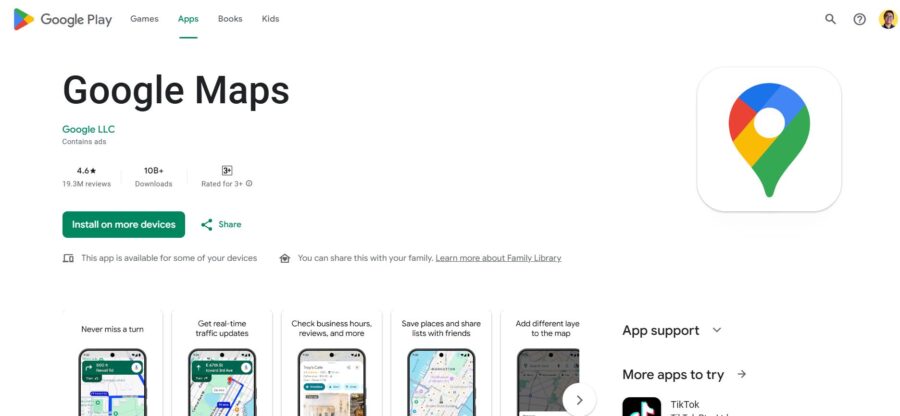
Open Google Maps on your Android phone and sign in to your Google account. You’ll need to be logged in to save offline maps.
Tap your profile picture up top. Find “Offline maps” in the menu.
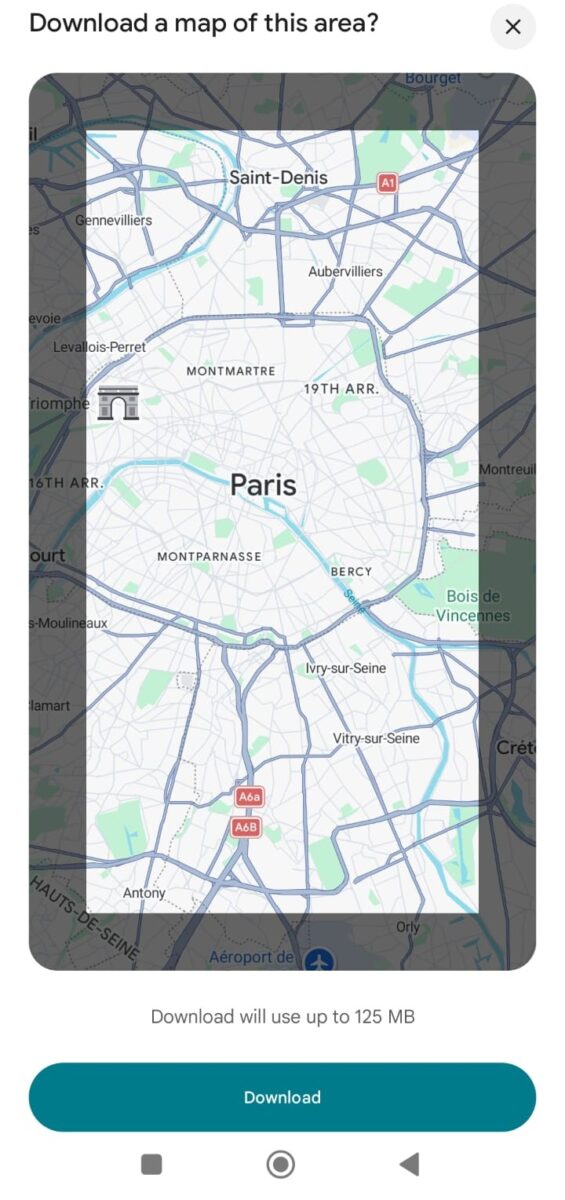
You’ll see “Recommended maps” based on your saved places and upcoming trips. If those work, just tap to download. If not, hit “Select your own map” at the bottom.
I usually download maps while I’m still on hotel or airport WiFi. They’ll eat up space—anywhere from 50 to 300 MB, depending on the area.
Step-by-Step Guide for iPhone

On iPhone, it’s almost the same. Open Google Maps, tap your profile picture in the corner.
Select “Offline maps.” You’ll get suggestions based on your Google account.
If those aren’t right, tap “Select your own map” and pick your spot. The app shows you how much space the map will take before you download it.
One note—iPhone users sometimes forget to update the Maps app before a trip. Double-check the App Store so you’ve got the latest version.
How to Select Your Own Map Area

Picking your own map area gives you control over what gets saved. Search for your destination, tap the place name or address at the bottom.
Swipe left in the info panel until you see “Download,” or tap the three dots and pick “Download offline map.” You can also get there from the Offline maps menu.
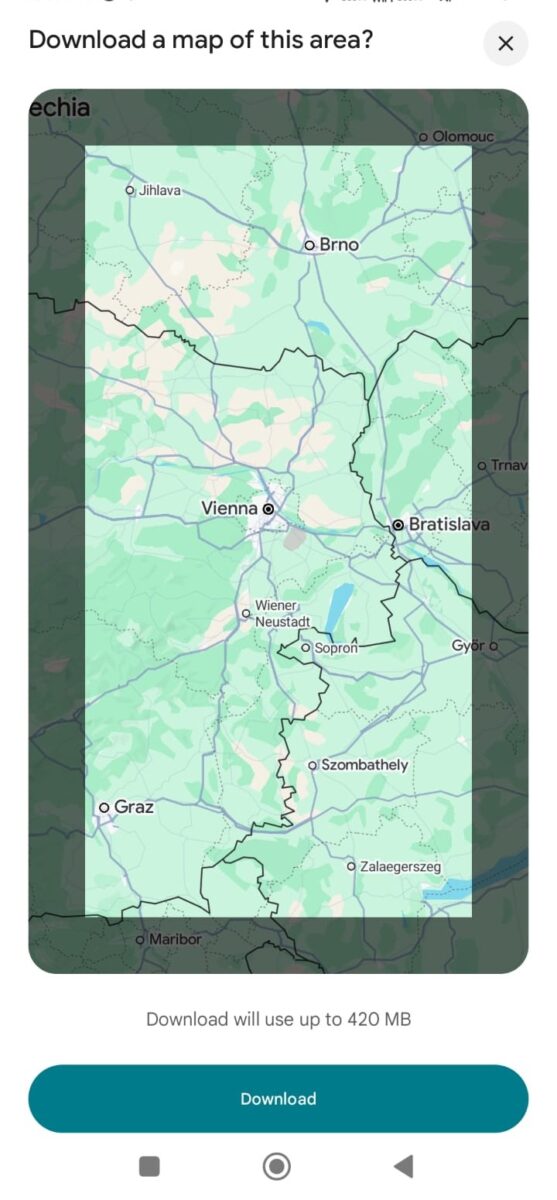
Google Maps outlines a rectangle with a blue border. Pinch to zoom in or out and adjust the size. The app updates the file size as you go.
There’s a max area—usually about 350 miles by 350 miles. If your trip covers more ground, download multiple areas as separate files.
Using the ‘ok maps’ Hidden Feature

This one feels like a secret handshake. Type “ok maps” in the search bar (no quotes), and Google Maps instantly starts downloading the current view as an offline map.
It’s way faster than clicking through menus, especially if you’re rushing. The only catch? You can’t resize the area—it just saves whatever’s visible on your screen.
I’ve used this trick when I realize I’m about to lose signal and need a map now. Just zoom to the spot you need, then type the command.
See Related: The Most Undiscovered Places in the World: Exploring Hidden Gems Off the Beaten Path
Managing and Updating Your Offline Maps

Downloaded maps need a little attention to stay useful. They take up storage space, expire after a while, and need updates as roads and businesses change.
Accessing Downloaded Maps

To see all your offline maps, tap your profile icon in Google Maps and pick “Offline maps.” You’ll get a list of everything you’ve saved.
Each map shows its name, download date, and file size. You can also see how much total space your offline maps are taking up. If you’ve got a bunch of regions for a big trip, this is your control center.
The previews show the exact boundaries you’ve downloaded. This makes it easy to spot any missing areas if you’re covering a lot of ground.
Renaming, Deleting, and Organizing Your Maps
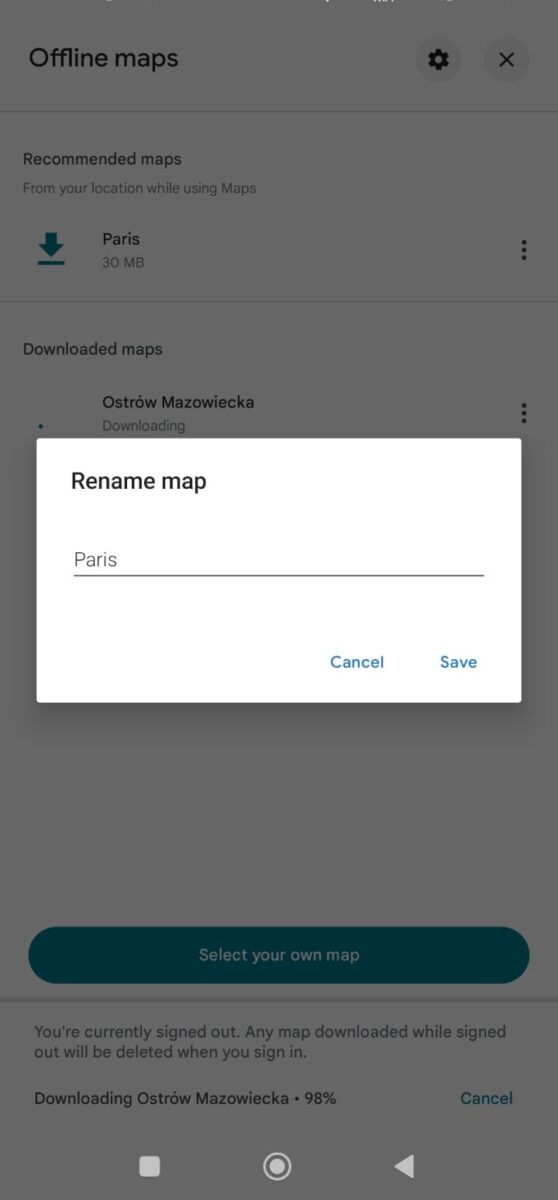
When you first save a map, Google gives it a generic name. You can rename it by tapping the map, hitting the three dots, and choosing “Rename.” I always use names like “Portland downtown” or “Yellowstone trip” so I know what’s what.
To delete a map, tap it and select “Delete.” That frees up space right away, which matters if you’re juggling lots of maps.
Google Maps doesn’t let you make folders or categories, but naming helps keep things tidy. If you’re saving multiple areas for one trip, try prefixes like “Japan – Tokyo” and “Japan – Kyoto.”
How Long Do Offline Maps Last and Auto-Update Tips

Offline maps expire after 15 days by default. Google does this because roads change and businesses move. Outdated maps can send you in the wrong direction or right into a dead end.
Google Maps tries to update your offline maps automatically over WiFi, but only if you open the app somewhat regularly. If you leave maps sitting untouched for weeks, they won’t update on their own.
You can update any map manually before it expires. Just open your Offline maps list, tap the map, and hit “Update.” I usually update all my maps the night before a trip, just for peace of mind.
If a map expires while you’re offline, it disappears automatically. That’s why I always check my maps a day or two before heading somewhere remote.
How to Use Google Maps Offline When Traveling

Once you’ve downloaded your maps, they kick in automatically if you lose internet. You can search, get directions, and follow turn-by-turn navigation as long as you stay inside your saved area.
Open Google Maps as usual, even with no internet. Type in your destination or scroll around your downloaded map. You’ll only see results from your saved area, which honestly makes things simpler sometimes.
Tap your destination and pick Directions. Choose driving mode—walking and transit don’t work offline. Hit Start and you’re off.
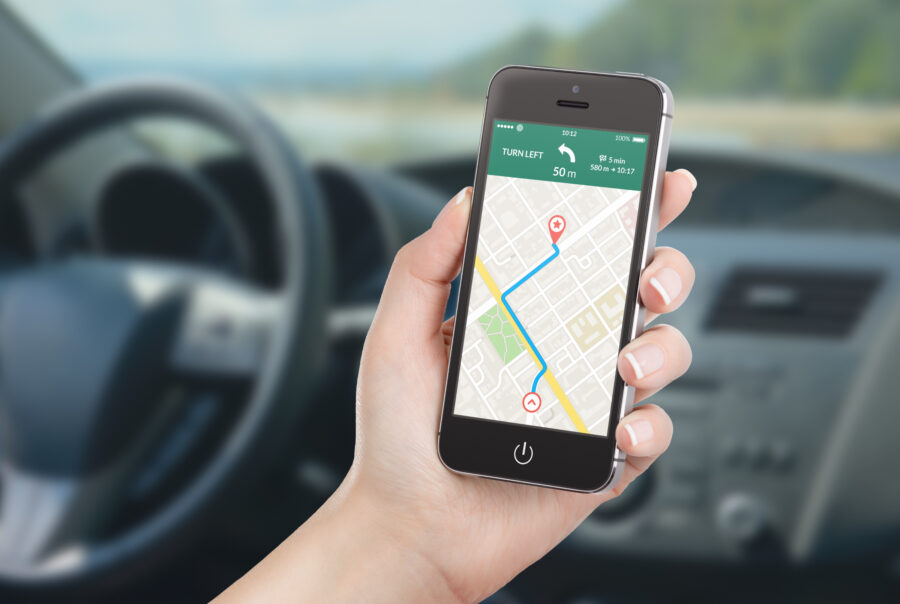
Navigation looks just like it does online. The blue dot moves, you get voice prompts at each turn, and your phone’s GPS keeps you on track without data.
One lesson I learned in rural Iceland: make sure your destination is inside your downloaded map before you leave WiFi. The app won’t warn you until you’re already offline—and probably lost.
If you drive outside your saved area, the map goes gray and navigation stops. Download a bit more than you think you’ll need to cover detours and wrong turns.
What Features Work Without Internet

You can search for addresses, businesses, and points of interest inside your downloaded area. Search works surprisingly well, but only shows what was available when you downloaded the map.
Available offline:
- Turn-by-turn driving directions
- Your current GPS location
- Saved places and starred locations
- Basic business info like addresses
- Satellite and terrain views
You can share your location with others if they have the Google Maps app, but they’ll need internet to see it.
Limitations and What to Expect
The biggest limitation? No live traffic data. You won’t see accidents, road closures, or any suggested alternate routes. The app gives you one route—take it or leave it.
Offline mode doesn’t support public transit, walking, or biking. It’s strictly for driving.
Business details like phone numbers and hours might be outdated, frozen from the day you downloaded the map. Reviews and photos just won’t load.
Your maps expire after about 30 days. Google usually updates them over wifi if you’ve got that setting on, but it’s smart to check your offline maps section before big trips to make sure everything’s still there.
Storage can become a problem. A single city can take 50-300 MB depending on the area. Download a few regions and suddenly your phone’s running out of space.
See Related: Least Accessible Travel Destinations
Advanced Tips for Maximizing Google Maps Offline

Once you’ve got the basics down, you can get clever—download strategic areas, organize your travel plans right in the app, and make sure your phone stays charged when you need it most.
Downloading Multiple Areas and Entire Regions

You’re not stuck with just one offline map. Google Maps lets you download as many areas as you want, which is a lifesaver for road trips or multi-city adventures.
I learned this the hard way in Portugal—my Lisbon map was useless once I drove north to Porto. Now, I grab every area I might wander into before I leave WiFi behind.
To download more than one area, just repeat the process for each place. Tap your profile picture, choose “Offline maps,” then “Select your own map.” Pinch and zoom until you’ve got the exact spot you want.
Each map eats up space, usually 50MB to 200MB depending on detail. Check your storage before you go on a download spree.
Give your maps names you’ll remember, like “Rome City Center” or “Iceland South Coast.” Google Maps deletes maps after 30 days, but you can update them manually to keep them fresh.
Creating and Managing Custom Itineraries
The Saved Places feature is a game changer offline. Before your trip, save every restaurant, attraction, or coffee shop you want to check out.
Exploring without internet? Open your offline map and all your saved spots pop up as icons. Way easier than screenshotting recommendations or scribbling addresses somewhere.
Try these tips to organize your saves:
- Make different lists for each day or category (breakfast, museums, nightlife, whatever)
- Star your absolute must-sees so they’re easy to spot
- Add places to “Want to go” if you’re on the fence
Your saved places stay visible even if you close and reopen the app, unlike Google My Maps, which is a bit of a hassle offline.
Spend 20 minutes before you leave scrolling through blogs and guides to build up your saved places. You’ll be grateful when you’re standing on a random street corner, hungry and clueless.
Staying Powered Up: Why Carry a Portable Charger

GPS is a battery hog. When you’re depending on offline maps in a new city, a dead phone can leave you totally lost.
I don’t travel without a portable charger anymore. After getting stranded in Barcelona’s Gothic Quarter with 2% battery, I learned my lesson.
A solid 10,000mAh charger will recharge most phones twice and costs under $30. If you can, get one with more than one port—charging your phone and camera together is a nice perk.
Keep your charger in your day bag, not your suitcase. You need it during those long sightseeing days, not back at the hotel.
Switch on battery saver mode when using offline maps. Lower the screen brightness and close any background apps you don’t need.
Troubleshooting and Pro Tips

Even with good planning, offline maps can throw you curveballs—failed downloads, GPS acting weird, or just confusion about staying connected abroad. Most issues are easy to sort out once you know what to check.
What to Do If Maps Won’t Download
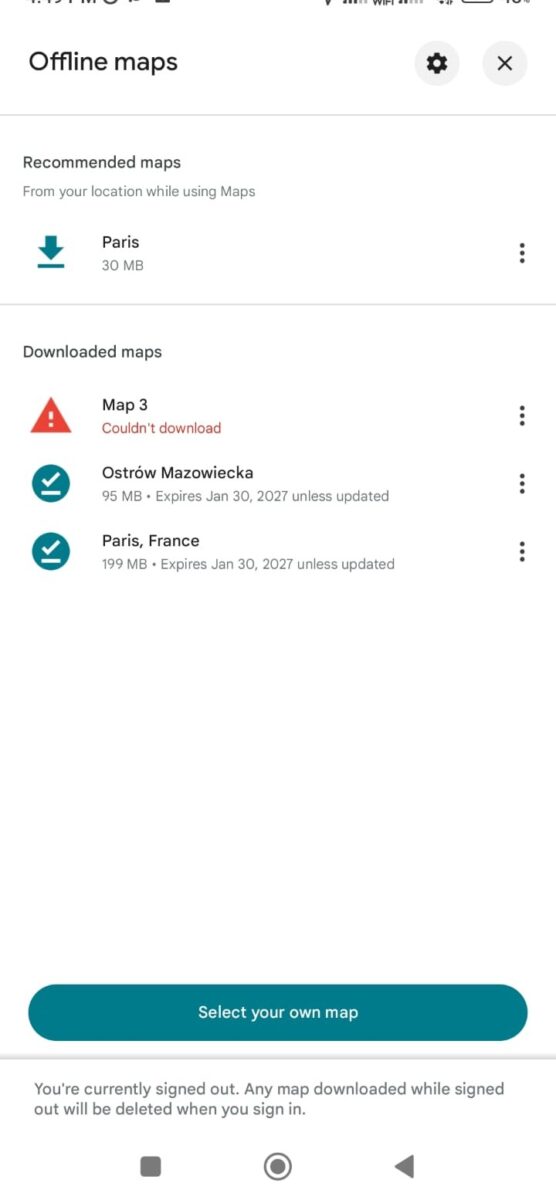
Lack of storage space usually causes download failures. Google Maps needs a decent chunk of room, and a single city can take 200-500 MB. If you’re low on space, clear out old photos, unused apps, or cached files.
Network hiccups can also mess up downloads. Always use a strong Wi-Fi connection—airports, hotels, or cafes are your best bet. If downloads keep stalling, try flipping airplane mode on and off, then reconnect to Wi-Fi and start again.
Some regions just don’t allow offline downloads due to local rules. If you see an error saying the area isn’t available, there’s really no way around it. This pops up more in countries with strict mapping laws.
One trick: download maps late at night or during off-peak hours. Less competition for bandwidth seems to help.
Ensuring GPS Works Offline Everywhere

Your phone’s GPS talks straight to satellites, so it doesn’t need internet to find you. But you have to enable location services before you go offline or hit airplane mode.
Turn on high accuracy mode in your location settings. This uses GPS, Wi-Fi, and mobile networks if they’re available, giving you the best shot at a quick lock. Even offline, this helps your phone find satellites faster.
Big buildings, tunnels, or thick forests can block GPS signals. If your blue dot’s stuck, step outside or move somewhere with a clearer view of the sky. GPS needs a good line of sight to work well.
Continuous GPS use eats battery. Bring a portable charger or plug into a car adapter on long drives. Lowering your screen brightness and killing background apps can also help stretch battery life.
Using Google Maps Offline With an eSIM

Here’s a neat trick—pair offline maps with an eSIM and you get the best of both worlds. You can navigate with downloaded maps and still tap into data for real-time updates when you actually need them.
An eSIM lets you buy cheap local data plans without swapping SIM cards. Download your maps over Wi-Fi before you leave, then activate your eSIM when you land for backup data. It’s way cheaper than international roaming.
Keep Google Maps offline as your main tool and use eSIM data just for live traffic or quick lookups. This keeps your data use (and costs) low.
Switch between offline and online mode by toggling airplane mode. It’s flexible—you won’t be stranded even if you run into spotty connectivity.
See Related: Best Girls Weekend Getaways (+ Itinerary Ideas)
Frequently Asked Questions
Downloading maps before your trip and managing offline access takes a few key tricks. Here are the questions travelers ask most about using Google Maps with no internet.
What are the steps to download and access Google Maps for offline use on an iPhone?
Open Google Maps and sign in. Tap your profile picture (top right), then pick “Offline maps.”
You’ll see recommended maps based on your habits. To grab a specific area, search for your destination city or neighborhood. Tap the name or address at the bottom, open the three dots menu, and hit “Download offline map.”
Pinch and zoom to adjust the area before downloading. The app shows you the storage size. Once it’s downloaded, your maps stick around in the Offline maps section for 30 days—after that, you’ll need to update them.
Yes, but there are limits. Google Maps lets you download pretty large areas, but not an entire country at once.
On Android, search for your city, tap the name at the bottom, swipe right on the info sheet, and select “Download offline map.” You’ll get a box you can resize by pinching and zooming.
The app caps each map at about 1.5 to 2 GB, depending on detail. For really big regions, download several overlapping sections. Usually, a major city and its suburbs fit within the limit.
How can I ensure my Google Maps stays in offline mode to avoid data usage during my travels?
Turn on Airplane mode, then enable WiFi or Bluetooth if you need them. This blocks all cellular data but keeps GPS working.
You could also turn off mobile data just for Google Maps in your settings, but honestly, Airplane mode is easier and stops other apps from sneaking online too.
The app switches to offline mode automatically when there’s no internet. Look for the little lightning bolt icon. Just remember: live traffic and business hours won’t update without a connection.
What are best practices for updating offline maps to ensure the latest information is available before travel?
Download or update your maps within a week of your trip. Roads change, businesses move, and you want the most current data possible.
Open your profile picture, tap “Offline maps,” and you’ll spot all your downloaded areas. Each map shows when you last updated it and when it expires. Tap the three dots next to any map and pick “Update” to grab the latest info.
Use WiFi for updates—those map files can get pretty big. Delete old maps you don’t need anymore so you’ve got space for new places. The app usually reminds you if maps are about to expire, but honestly, it’s better not to wait if you know you’re heading out soon.