 Real Journey Travels
Last modified April 7, 2026
Remember when planning a trip meant juggling a dozen browser tabs just to compare flights and hotels? Well, things have changed. The Claude Chrome extension can scan web pages, compare your travel options, and help you organize your whole itinerary—all without bouncing between apps.
Maybe you’ve tried other AI chatbots for travel planning, but Claude’s browser extension actually feels different. It sits right in your browser and reads the pages you’re on in real time. So when you’re comparing hotels or checking out restaurant reviews, Claude pulls that info together and gives you recommendations based on what’s actually in front of you.
Right now, the extension is only available to Claude Max subscribers. That’s $200 a month—definitely pricey.
Still, if you value your time and hate endless travel research, it might be worth a look. Claude always asks before doing things like booking, so you keep control over your plans.
Key Takeaways
- Claude Chrome extension scans travel sites in real time and sums up info to speed up your research
- The tool helps you compare options across tabs and organize your findings into a travel plan
- Security features mean you approve any big actions or sharing of personal info
Getting Started With Claude Chrome Extension
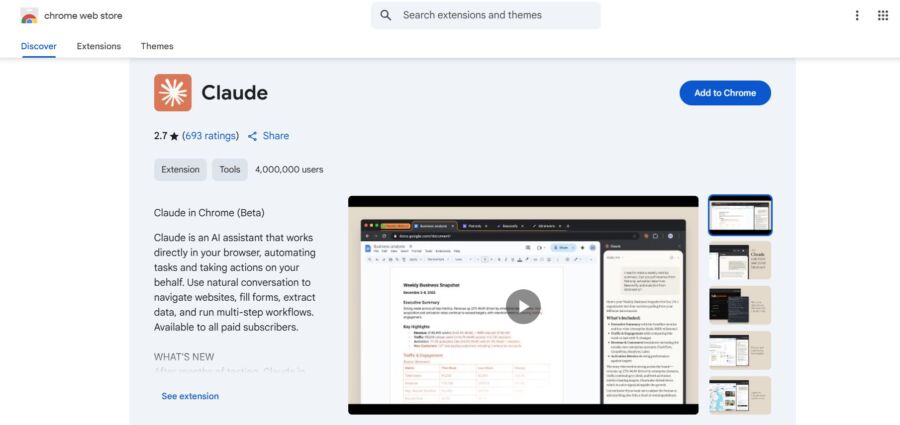
You’ll need a paid Anthropic subscription to use the Claude for Chrome extension, and it’s still in beta with limited access. Start by installing it from the Chrome Web Store, link it to your account, and set which sites Claude can use.
Installation and Setup on Chrome
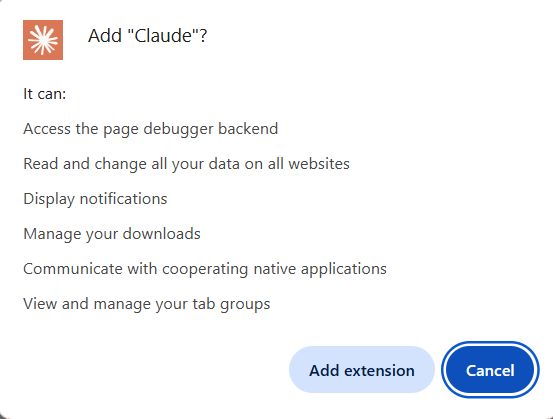
Look for Claude for Chrome in the Chrome Web Store, but keep in mind only Claude Max plan subscribers can use it right now. It works with both Chrome and Microsoft Edge. Make sure you’re on version 1.0.36 or newer.
Before installing, double-check you’re running the latest Chrome version. Head to the Chrome Web Store, search for “Claude in Chrome” or “Claude for Chrome,” then hit Add to Chrome and confirm when it asks.
Once it’s installed, you’ll see the extension as a sidebar panel in your browser. Open it by clicking the Claude icon in your Chrome toolbar.
The sidebar sticks around across tabs, so it keeps context as you browse different sites. That’s handy for comparing info from a bunch of places.
Chrome will ask for basic permissions when you install. These are pretty standard and let the extension work in your browser.
Connecting Claude to Your Anthropic Account

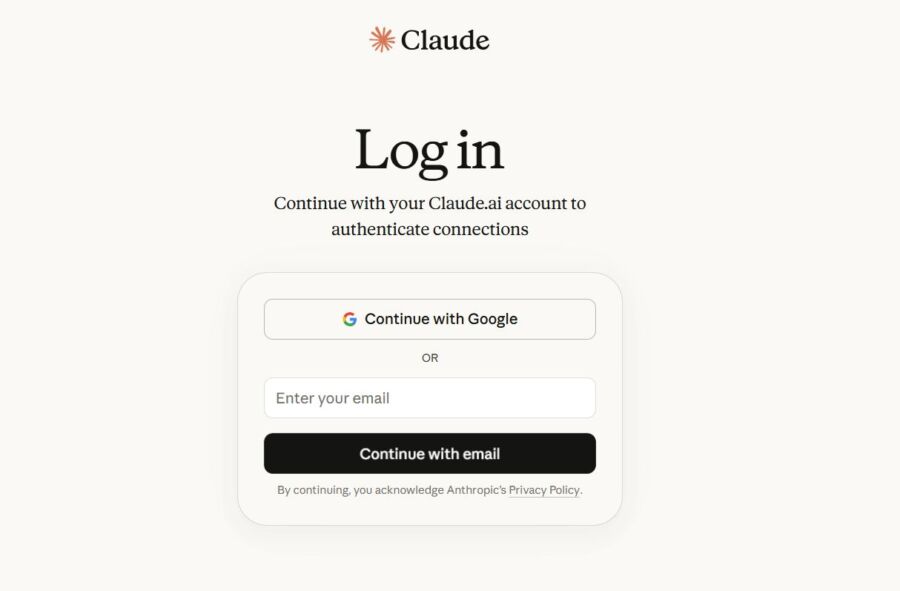
After you install it, you’ll need to sign in with your Anthropic account. Click the Claude icon, open the sidebar, and log in using your usual credentials.
You’ll need a direct Anthropic plan—Pro, Max, Team, or Enterprise. API-only accounts won’t work with the extension. The $100 Max plan gives you five times more usage per session, while the $200 plan boosts that to 20 times.
Claude shares your browser’s login state, so if you’re already signed into sites like Google Flights or hotel booking pages, it can access them without making you log in again. If it hits a login page it can’t access, it’ll pause and ask you to sign in yourself.
Initial Permissions and Settings
Claude always asks for permission before it interacts with any website. The extension uses site-level permissions to control where it can browse, click, and type.
When you first ask Claude to help on a website, it’ll request access to that domain. You can give permission just for that session or allow ongoing access. There are three levels:
- View only – Claude can read the page but can’t click or type
- Limited actions – Claude can do basic stuff like click and scroll
- Full access – Claude can fill forms, submit data, and finish transactions
Be careful with full access. Anthropic blocks the extension from working on risky sites like financial services, adult content, or pirated content. Even with safety measures, their testing found about an 11% attack success rate from malicious prompts.
Manage permissions by right-clicking the Claude icon and hitting Settings. You can see which sites have access, revoke permissions, or change the access level. For travel planning, you usually just need limited actions to compare flights and hotels, but you’ll want full access if you want Claude to fill out booking forms.
You get to choose when Claude acts on its own and when it needs your okay. That’s extra important for stuff like purchases or entering payment info.
Core Features for Travel Planning

The Claude Chrome extension covers everything from building day-by-day itineraries to searching for flights and keeping your travel calendar straight. These features work together to make the planning process way less of a headache.
Planning Itineraries and Multi-Step Travel Tasks

Claude’s great at breaking down complicated travel plans into manageable steps. If you ask it to plan a week in Tokyo, it won’t just spit out a random list of attractions. Instead, it checks your preferences, looks at travel times between spots, and builds a logical flow for each day.
The multi-step tasks feature really shines here. Tell Claude, “Plan a 5-day trip to Barcelona with kids under 10,” and it’ll take care of the whole process. It’ll research family-friendly stuff, check opening hours, and put everything in a sensible order.
What’s especially handy is Claude’s ability to remember context as you chat. If you say you’re not into museums halfway through, it’ll adjust your itinerary without making you start over. The web search feature grabs up-to-date info about attractions, restaurants, and events during your travel dates.
Finding and Booking Flights and Accommodations

The extension uses web search to help you compare flights and hotel rates across different sites. You can ask Claude to find flights from New York to Paris in June, and it’ll pull current prices and schedules.
You’ll still need to finish bookings yourself on airline or hotel sites. Claude can’t make purchases or fill in payment info. What it does well is organize your options clearly—usually in tables comparing prices, departure times, and amenities side by side.
I’ve found the extended thinking feature pretty helpful when I’m stuck between accommodation choices. If you can’t decide between a city center hotel or one in a quieter neighborhood, Claude weighs things like transportation costs, how close you’ll be to your plans, and how it all fits your budget before making a suggestion.
Managing Schedules and Calendar Integration
Claude helps you keep confirmation numbers, flight times, and reservation details all in one easy-to-read spot. It doesn’t sync directly with Google Calendar or Outlook, but you can ask it to format your itinerary for simple copy-paste into your calendar app.
The max plan tier gives you more room for longer chats, which is nice when you’re juggling multiple bookings and itinerary tweaks. You can revisit earlier planning sessions and update details without losing the thread.
For trip schedules, Claude builds hour-by-hour breakdowns that include travel time, meal stops, and buffer time between activities. Way better than manually figuring out how long it takes to get from the museum to the next spot.
How Claude Extension Enhances Travel Research

Claude’s browser extension totally changes how you gather and use travel info. It can analyze a bunch of sites at once and pull out exactly what you need for your trip. Comparing hotel listings or tour options takes seconds, not hours of flipping between tabs.
Summarizing and Comparing Webpages

The extension reads through long travel blogs, hotel write-ups, and destination guides, then gives you the main points without all the fluff. If you’re looking at three Airbnb listings in Barcelona, Claude breaks down amenities, location perks, and guest reviews side by side.
No more copy-pasting info into a spreadsheet. Just highlight the pages you want to compare, and Claude builds a structured comparison based on what matters to you—like price, how close you are to sights, or cancellation rules.
The context window in newer models, like Opus 4, handles way more text than before. You can give Claude whole destination guides or several blog posts about hiking in Patagonia, and it’ll summarize everything so you don’t miss hidden details. I’ve tested this with 10+ travel articles open at once, and it found stuff I’d have missed skimming on my own.
Extracting Key Information From Sites

Travel websites love to bury important details in walls of marketing text. Claude cuts through the noise and grabs visa requirements, best seasons to visit, average costs, and transport options.
When you’re on a tour company’s site, just ask Claude to pull out departure dates, what’s included in the price, group size, and difficulty ratings. It saves you from reading pages of promo copy to find out if meals are included.
The AI models behind the extension get context well enough to spot the difference between “free cancellation” and “free cancellation up to 48 hours before.” That stuff matters when you’re booking refundable trips. Opus 4.5 is better at these subtle details than earlier versions.
Organizing Travel Notes in Notion and Other Tools
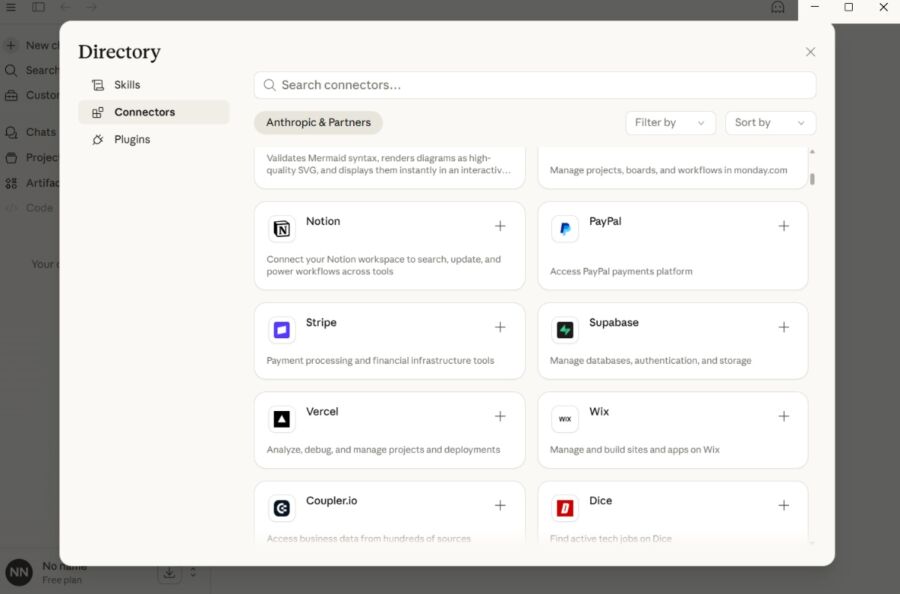
Claude can format its findings for Notion, Google Docs, or whatever planning tool you use. Ask for a bulleted itinerary, and you’ll get markdown that pastes cleanly—no extra formatting headaches.
I usually have Claude make tables comparing flight options—columns for price, duration, layovers, and departure times. Then I just drop that into my Notion travel database. It’s way faster than building the table myself.
The extension remembers what you asked about earlier. If you checked hotels in Rome an hour ago and now you’re looking at restaurants, Claude connects those needs and can suggest places to eat near your shortlisted hotels. That continuity helps you build a cohesive plan instead of random notes.
See Related: How to Use ChatGPT to Find Cheap Flights: Pro Tactics & Smart Hacks
Tool Use and Integrations for Seamless Planning
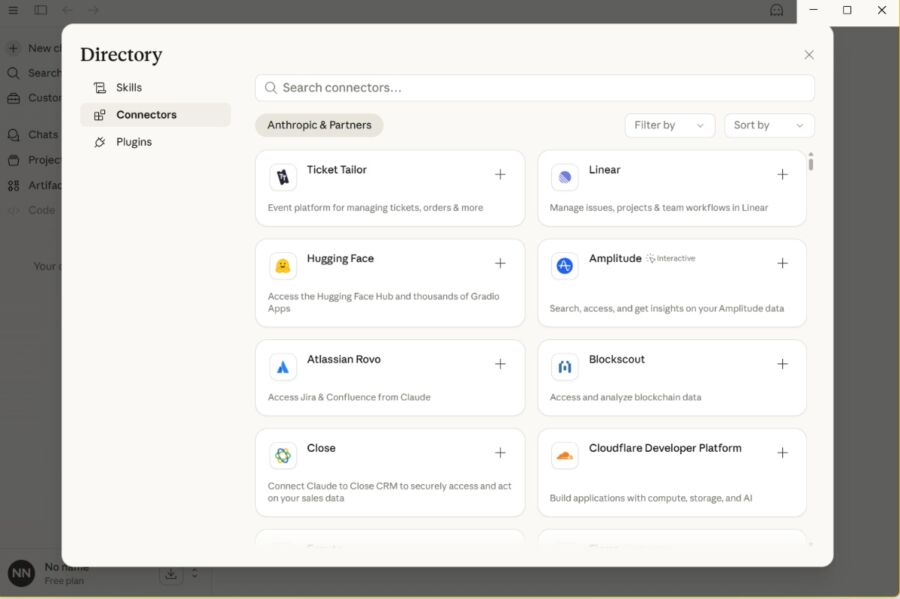
Claude’s Chrome extension connects with travel apps and services through tool calling, so you can build itineraries without flipping between tabs. You can search for tools, run actions programmatically, and see real-time results right in your planning flow.
Programmatic Tool Calling for Travel Apps

The Chrome extension uses programmatic tool calling to work with travel services automatically. Ask Claude to check flight prices or find hotels, and it’ll use the right APIs in the background.
No more copying data between apps. Claude pulls info from booking platforms, maps, and weather APIs in one conversation. The tool calling happens through structured requests based on what you ask for.
Common travel tools you can connect:
- Flight search APIs for price comparisons
- Hotel booking platforms
- Map services for planning routes
- Currency converters for budget tracking
- Weather services for packing lists
The extension handles authentication and formatting for you. Just describe what you want in plain English, and Claude figures out which tools to use and how to combine the results into something actually useful.
Using Tool Search to Find Relevant Tools
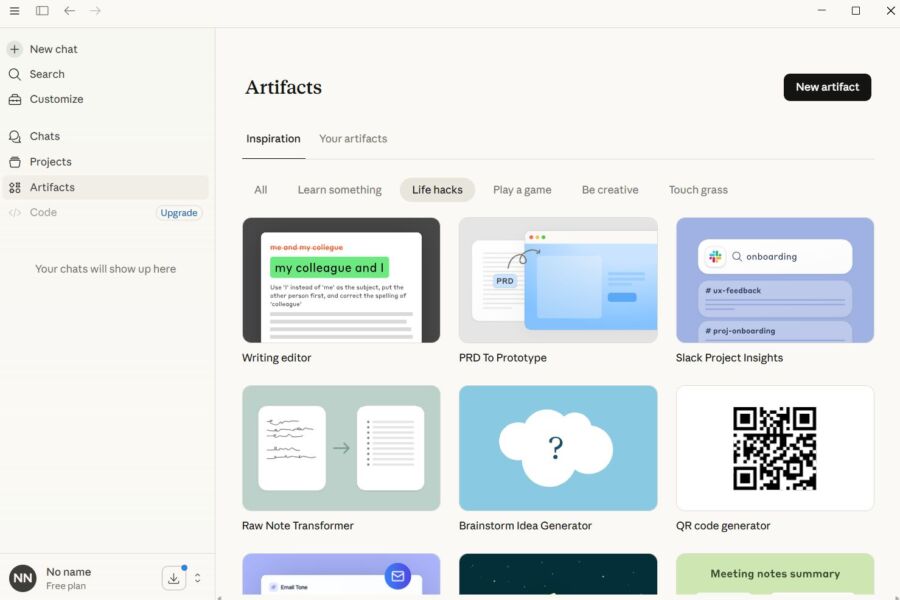
Tool search makes it way easier to figure out which integrations actually fit your travel plans. You don’t have to know every tool out there—just ask Claude, and it’ll toss out suggestions based on what you need.
Mention a destination or some activity, and tool search will scan its integrations, then pick the ones that fit best. Planning Japan? Claude might pull up currency exchange, translation, and local transit apps in a snap.
The search ranks tools by how well they match your request. Better-reviewed or more reliable tools show up first. You can also filter by category—like “accommodation” or “transportation”—if you want to get specific.
Practical Examples of Tool Use in Travel Itineraries

Let’s say you’re building a week-long itinerary. You could start by asking Claude to find flights to Barcelona in September. Claude fires up flight search tools and brings back options, sorted by price.
Next, you’ll want a hotel near the Gothic Quarter. Claude uses accommodation tools to dig up three choices in your price range, complete with ratings and what’s included. Then you ask about airport transfers—and it’ll fetch transit schedules or taxi estimates.
For daily plans, you can ask for restaurant picks. Claude checks review platforms and filters by cuisine, price, and how close they are. Want to visit museums? It’ll check opening hours and ticket availability through cultural venue APIs.
Claude can even handle code execution for trickier stuff. Need to split costs between four travelers? It’ll crunch the numbers and spit out a shared expense breakdown. Want to optimize your route between attractions? It’ll run pathfinding code with map data to save you some steps.
See Related: How to Use Claude Cowork for Travel Planning: Expert AI Tips & Secrets
Security and Privacy Considerations
When you use Claude for Chrome to plan your vacation, you should know about the security risks that come with letting AI run in your browser. Some sites can hide instructions that trick the AI into doing things you never agreed to. Booking flights or sharing passport info? That stuff definitely needs extra protection.
Prompt Injection Attacks and High-Risk Actions

Prompt injection attacks sneak in when malicious code hides in websites, emails, or docs—basically tricking Claude into doing something harmful behind your back. In early tests, these attacks worked 23.6% of the time before safety features got added. That’s about one in four, which is honestly kind of wild.
Picture this: you’re searching for hotels and open an email that looks like it’s from your rewards program. That email might have hidden instructions telling Claude to delete your travel confirmations or send your credit card info to a scammy site. Claude might follow those commands because it can’t always spot the difference between your real instructions and sneaky ones.
High-risk actions in travel planning include:
- Making purchases or entering payment info
- Sharing passport numbers or ID details
- Deleting booking confirmations or itineraries
- Accessing financial services for travel insurance
Browser-specific vulnerabilities had an attack success rate of 35.7% in initial tests. These attacks used hidden form fields and URL tricks to fool the AI.
Advanced Safety Mitigations
Anthropic added several layers of protection to Claude for Chrome, which dropped the prompt injection success rate from 23.6% to 11.2% in autonomous mode. For browser-specific attacks with hidden forms and URLs, the fixes brought the success rate down to zero.
The system now asks for confirmation before Claude can do big things like buying plane tickets or sharing your data with travel sites. You’ll get a prompt to approve these high-risk actions before anything goes through.
Still, 11.2% isn’t exactly reassuring when it’s your vacation money and personal info on the line. Attackers keep coming up with new tricks, so Claude for Chrome is only available to 1,000 pilot users for now. As an extra safety step, the AI blocks access to financial service sites completely.
Managing Site-Level Access for Safer Browsing

You decide which websites Claude can access by setting site-level permissions. That’s a big deal, because you probably trust Expedia or Booking.com way more than some random travel blog you just found.
Set permissions for trusted travel sites—think airline sites, hotel chains, and major booking platforms. Don’t give Claude blanket access to every site you visit. If you’re just browsing reviews on TripAdvisor, you don’t need the AI running wild in that tab.
Recommended permission settings:
- Allow: Major airlines, well-known hotel booking sites, trusted travel forums
- Block: Financial sites, email providers, anything with payment processing
- Review case-by-case: Small tour operators, private rental sites
Double-check your permission settings before you start planning a new trip. And if you’re logging into something sensitive, like your frequent flyer account, it’s smart to pause Claude’s access for a bit.
Comparing Claude With Other AI Travel Tools

Claude actually stacks up pretty well against other big-name chatbots like ChatGPT and Gemini for trip planning. Each platform brings different strengths to the table, though.
How Claude Stacks Up Against ChatGPT and OpenAI
Claude and ChatGPT both do a solid job at building travel itineraries, but their styles aren’t the same. In recent tests, both platforms put together decent vacation plans, but neither one always takes the crown.
ChatGPT usually offers more creative ideas and pulls from a wider base of casual travel knowledge. It’s great for brainstorming offbeat experiences.
Claude, especially with its Sonnet 4.6 model, really shines at agent planning and handling multi-step requests. If you need to juggle flights, hotels, and activities in different cities, Claude’s structured approach keeps things tidy and organized.
The big difference? ChatGPT might wow you with fun ideas, but Claude turns those ideas into actual plans you can follow.
Unique Advantages of Claude Models for Travel
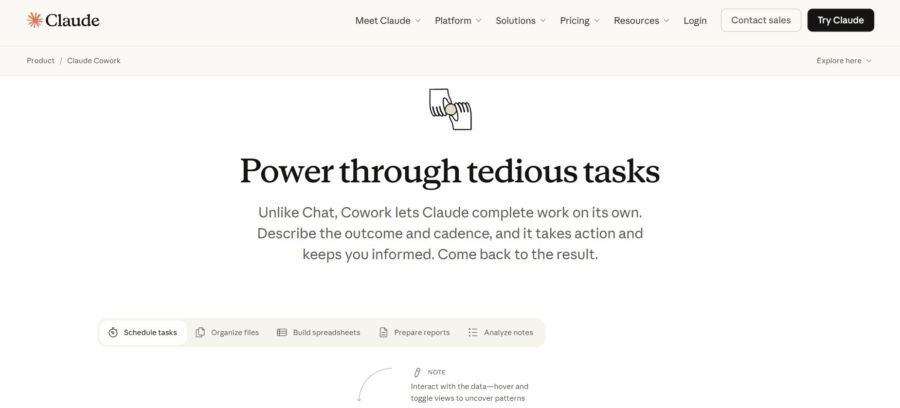
Claude’s latest models bring a few features that make travel planning smoother. The Sonnet 4.6 update boosted its ability to handle complex trip requirements and long reasoning tasks.
Claude really stands out when you throw in a bunch of constraints. Give it your budget, dietary needs, mobility stuff, and travel dates—it’ll juggle all those details at once and not lose track.
It also remembers context over longer chats. If you’re planning a two-week trip and keep adding new requirements, Claude won’t forget what you said ten messages ago. That makes the back-and-forth less annoying than starting over every time.
The AI assistant can integrate with hundreds of tools through its advanced tool use skills, though honestly, that’s more for developers than your average traveler right now.
Integrating With Existing AI Assistants

You don’t have to pick just one AI assistant for planning a trip. Claude works alongside other tools you probably use, like Google’s travel features or Microsoft Copilot.
Claude Cowork (still early access) can even access files on your computer, so you could pull in saved flight confirmations or hotel bookings. But honestly, that’s new ground—be careful what you share.
Lots of travelers mix and match AI chatbots—maybe brainstorming with ChatGPT, then letting Claude handle logistics. Gemini and Copilot can fit into this workflow too, depending on your devices and what you already use.
The tech keeps changing fast, so honestly, the best move is to try a couple different AIs for your next trip. You’ll figure out pretty quickly which one fits your planning style.
See Related: Game-Changing Hacks for Sleeping on Planes
Frequently Asked Questions
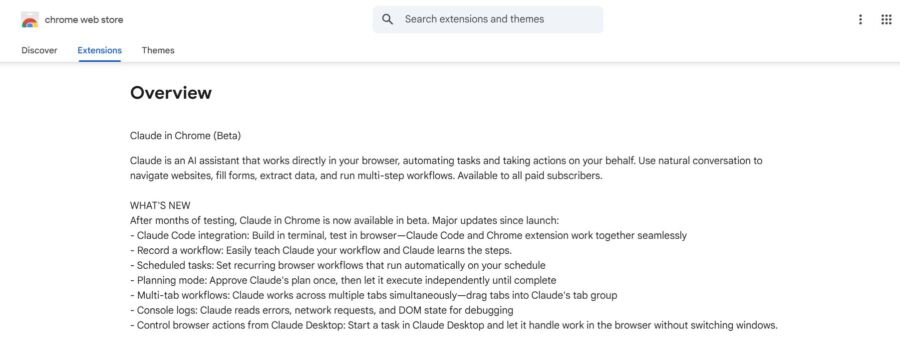
Getting started with the Claude Chrome extension for travel planning usually brings up a few common questions. You’ll probably want to know how to set it up, what to ask for the best results, and how to use it for specific planning tasks like comparing transport or building budgets.
How do I install and set up the Claude Chrome extension to plan a trip efficiently?
First, grab the Claude in Chrome extension from the Chrome Web Store. Make sure you’re on version 1.0.36 or higher for the best results.
You’ll need an active Anthropic plan—Pro, Max, Team, or Enterprise all work. After you install it, check your extension settings to manage site permissions.
This lets you control which travel sites Claude can access and interact with for you. Let it access booking platforms, airline sites, and travel forums you trust.
What prompts work best to generate a complete itinerary with dates, transit times, and travel pace?
Be specific when you ask. Instead of “plan a trip to Japan,” try “create a 10-day Tokyo and Kyoto itinerary for April, moderate pace, interested in temples and food.”
Mention your travel style. Tell Claude if you like fast-paced sightseeing or laid-back days, if you’re an early bird or night owl, and if you want rest days included.
Ask for structured output with times. You could say, “include transit times between locations and realistic time at each spot” so your day doesn’t get overloaded. Or, “build in 30-minute buffers between activities” for a more relaxed schedule.
How can I use the extension to compare flights, trains, and driving options and summarize the trade-offs?
Give Claude your starting point, destination, and rough dates. Ask it to “compare flight, train, and car options from Boston to Montreal in June and summarize costs, travel time, and convenience.”
The extension browses multiple sites to grab current info. It’ll pull data from airline sites, rail booking platforms, and mapping tools for a complete picture.
Request a side-by-side breakdown of pros and cons. Try, “create a comparison table showing price, total travel time including transfers, flexibility to change plans, and environmental impact for each option.”
How do I get the extension to build a day-by-day plan with maps links, opening hours, and time estimates?
Start with your main destinations and interests. Then ask Claude to “create a day-by-day plan with Google Maps links for each location, include current opening hours, and estimate time needed at each place.”
Tell Claude to check actual hours of operation. Many attractions have seasonal schedules or close on certain days, and you want that verified. Ask it to “confirm opening hours for all attractions and flag any that are closed on my travel dates.”
Request realistic time allocations based on reviews and typical visit times. Say, “check typical visitor durations and travel time between stops, then build a schedule that doesn’t rush through things.”
How can I use the extension to create a realistic budget with itemized costs for a destination?
Start by sharing your destination and travel style. You might say, “create a daily budget breakdown for Barcelona, mid-range accommodations, eating out twice a day, using public transit.”
Ask for estimates broken down by category. Try something like, “itemize costs for lodging, food, transportation, attractions, and miscellaneous spending with current prices from booking sites and menus.”
Get Claude to check real prices from different sources. For example, you can say, “pull current hotel rates from booking sites, check restaurant menus for meal costs, and look up transit pass prices to build an accurate total budget.” You’ll get numbers that actually reflect what things cost right now, not just old averages.


