
Last modified February 5, 2026
Lost luggage anxiety doesn’t have to ruin your trip, and you don’t need an expensive international data plan to track your bags. AirTags work without data roaming because they use Apple’s vast Find My network of nearby iPhones to relay your bag’s location back to you, not your own cellular data. So even if you’ve turned off roaming or pulled your SIM card, your AirTag keeps working.
I’ve seen so many travelers panicking at baggage claim, but those with AirTags? They stay cool. The device just sits in your suitcase, quietly connecting to passing iPhones via Bluetooth, creating a tracking network that covers airports, hotels, and destinations all over the world. All you need is WiFi to check the Find My app.
Key Takeaways
- AirTags track luggage through nearby iPhones—no need for your own data or roaming
- Put your AirTag inside checked bags, not on the outside, for better tracking and less risk of it falling off
- Enable Lost Mode before you travel so others can contact you if they find your missing luggage
How AirTag Luggage Tracking Works Without Data Roaming
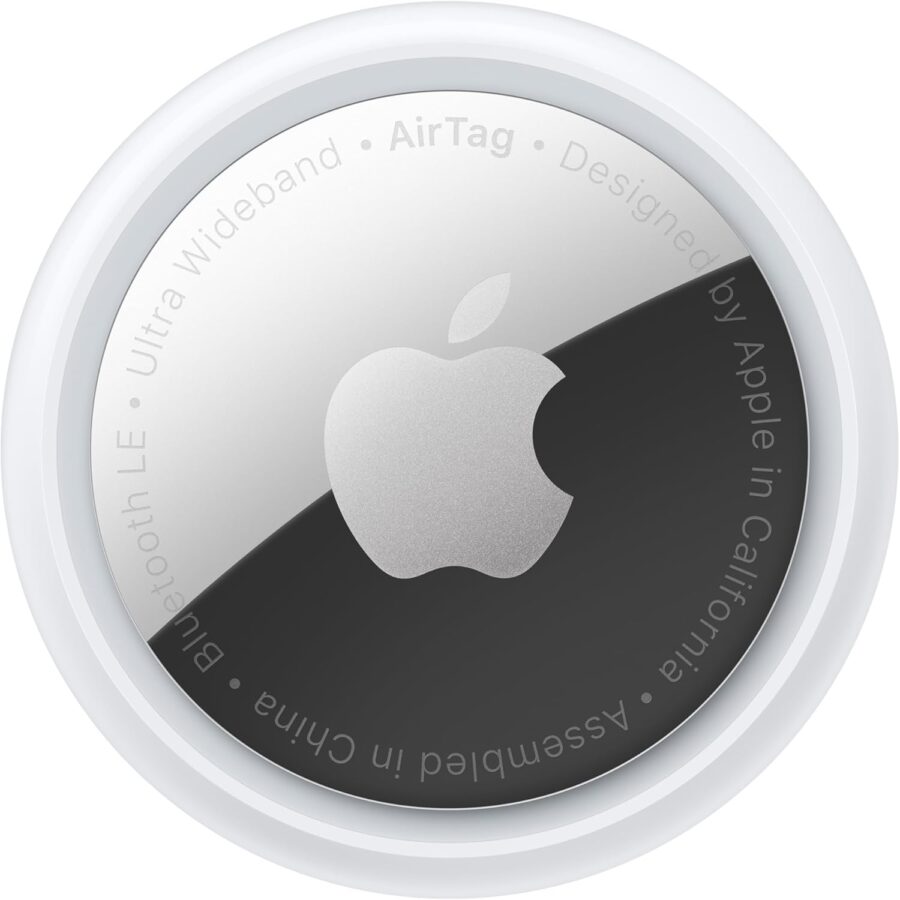
Your Apple AirTag doesn’t need your phone’s data roaming or even an active cellular connection to track your checked bags. It relies on Apple’s crowdsourced network of nearby devices using Bluetooth signals to relay your luggage location back to you.
Understanding Apple’s Find My Network

The Find My network is the secret sauce that lets your AirTag work anywhere, no international data plan required. Over a billion Apple devices worldwide quietly create a tracking web behind the scenes.
When you toss an AirTag in your bag, it’s always sending out a secure Bluetooth signal. Any iPhone, iPad, or Mac within range picks it up and anonymously reports the location to Apple’s servers. You’ll then see that update in your Find My app.
The best part? The person whose device detected your AirTag never knows they helped. It’s all encrypted and anonymous.
Their device just does its thing, no action needed. So even if you land in another country with your phone on airplane mode, you can still track your bags as long as Apple devices are nearby.
Bluetooth Range and Functionality Explained

AirTags use Bluetooth, not cellular or GPS. Official range is about 800 feet, but walls, crowds, and interference can cut that down quite a bit.
You don’t have to be close to your luggage for tracking to work. That’s the genius of the Find My network. If anyone with an Apple device walks within 800 feet of your bag, their phone picks up the signal and relays the location.
In busy airports, this works beautifully. With so many iPhones around, your bag will ping multiple devices as it moves through baggage handling, so you get frequent updates.
But sometimes it’s less reliable—like in remote areas or places with fewer Apple users. I’ve had bags sitting in warehouses overnight with no update for six hours.
What Happens When You Lose Cellular Connection

If your phone loses cellular connection or you turn off data roaming, you can still use the Find My app to track your AirTag. The app works over WiFi, or even offline if you’ve downloaded the map area beforehand.
Real-time updates require some kind of internet, so if you’re totally offline, you’ll have to wait. As soon as you connect to WiFi at your hotel or the airport, the Find My app refreshes and shows you the latest bag location.
Your AirTag keeps working the whole time, even when your phone’s offline. It keeps broadcasting its location to nearby Apple devices, and those updates sit on Apple’s servers until you check in.
I’ve tracked bags while my phone was in airplane mode, just by jumping on airport WiFi. The location history showed exactly where my luggage had been, even while I was disconnected.
Location Updates Via Nearby Apple Devices

The frequency of location updates depends on how many Apple devices pass near your AirTag. In a crowded terminal, you might get an update every few minutes. In a remote baggage area, it could be hours between pings.
Each time an iPhone or other Apple device detects your AirTag’s Bluetooth signal, it sends an encrypted location report to Apple. You’ll see this as a dot on your map, with a timestamp.
The Find My app tells you how long ago your bag was detected: “Updated 3 minutes ago” or “2 hours ago.” That way, you know if you’re looking at a current location or not.
Sometimes you’ll see a big blue circle instead of a pinpoint. That just means your AirTag hasn’t been detected recently, or the network isn’t sure about the exact spot. Don’t stress—this is normal, especially when bags are in transit or tucked away somewhere quiet.
Setting Up Your AirTag for Luggage Tracking Success
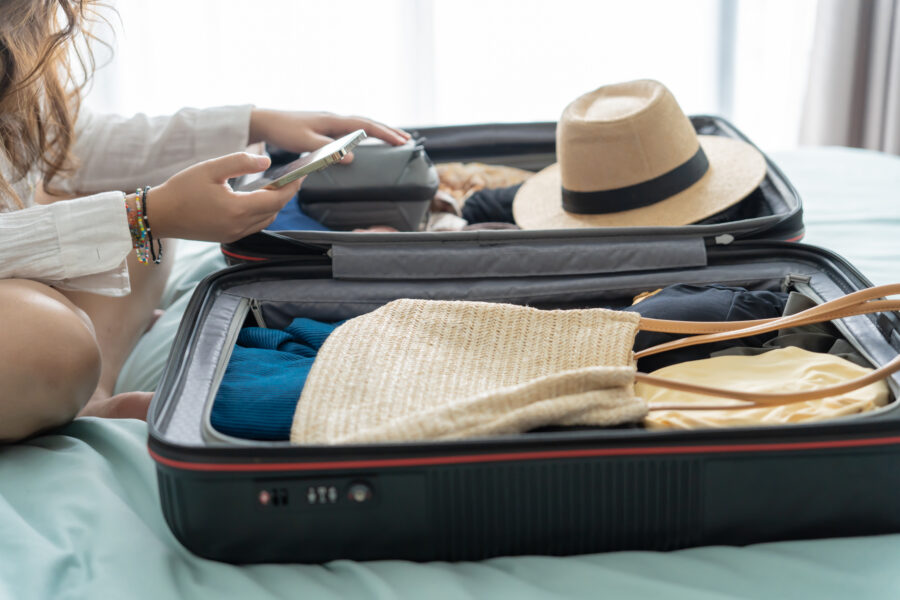
Set up your AirTag before you even think about checking a bag. The good news: you don’t need data roaming for any of this. Do the initial setup at home using your iPhone’s Bluetooth, and once you get the Find My app basics, you’ll be able to track your luggage anywhere Apple’s network reaches.
Essential iPhone and iOS Requirements
You’ll need an iPhone running iOS 14.5 or later to use Apple AirTags. Honestly, if your phone’s older than that, you’ve probably got bigger problems than luggage tracking.
Just go to Settings > General > Software Update. Your phone will tell you what version you’re on. Update now while you’re on WiFi at home if needed.
Turn on Bluetooth in Settings. Make sure the toggle is green. No Bluetooth? Your AirTag is just a shiny coin.
Your Apple ID should be signed in too. Check at the top of Settings. And a tip from personal experience—make sure Find My is enabled under your Apple ID before you try pairing an AirTag, or you’ll be stuck wondering what’s wrong.
Pairing and Naming AirTags for Each Bag
Peel off the plastic wrap and pull the tab. You’ll hear a little beep.
Hold the AirTag near your iPhone. After about 20 seconds, a popup asks you to connect. Tap Connect.
Here’s where a lot of people mess up—they name every AirTag “Luggage” or something generic. Don’t do that. When you’re frantically checking the Find My app at baggage claim, you want to know exactly which bag you’re looking for.
I name mine things like “Black Carry-On” or “Mom’s Red Suitcase” if I’m traveling with family. Get specific. The app offers preset names, but you can type your own under “Custom Name.” It’s worth the extra second.
If you’re setting up several AirTags for a family trip, do them all at once. It takes five minutes, tops, and you’ll be glad when you’re not guessing which icon matches which bag.
Best Practices for Activating and Configuring Your AirTag
Always put your AirTag inside your luggage, not on the outside. I’ve heard too many stories about AirTags falling off external tags somewhere between check-in and the cargo hold.
Stick it in an interior pocket or between layers of clothes. The signal works fine through fabric. Some folks buy those Belkin holders, but honestly, a sock works just as well and costs nothing.
Enable Lost Mode before you travel, even if your bag isn’t lost. In the Find My app, select your AirTag, scroll down, and tap “Enable” under Lost Mode. Add your phone number or email so anyone who finds your bag can contact you.
The Find My network does all the heavy lifting. Other people’s iPhones ping your AirTag’s location automatically, and Apple’s servers update your Find My app. You don’t need data roaming—just check the app when you have WiFi.
Before big trips, check your AirTag battery. Press down on the silver side and twist counterclockwise. If it beeps, you’re good to go.
How to Use the Find My App for Luggage

Open the Find My app on your iPhone. There are three tabs at the bottom: People, Devices, and Items. Tap Items.
Every AirTag you’ve set up appears here with its custom name and icon. Tap the one you want to track. The map shows you where it is (or was last detected).
The app displays a timestamp for the last location update. If it says “2 minutes ago” and your bag’s at the carousel, awesome. If it says “4 hours ago” and your bag’s across town, well, now you’ve got some ammo when you talk to the airline.
Tap “Directions” and your phone opens Maps with routes. You can drive, walk, or bike to your AirTag’s location. I’ve literally used this to find a lost bag when the airline claimed it was “still processing”—it was actually in a different terminal.
The “Play Sound” button makes your AirTag chirp. This only works if you’re within Bluetooth range—about 800 feet, but less with walls or interference. Handy for finding your bag on the carousel or in a crowded hotel lobby.
Zoom out for a city or country-level view when your bag’s traveling internationally. Zoom in close for precision. When you’re very close, the app switches to Precision Finding mode, with arrows and distance to guide you right to your bag.
See Related: Packing Cubes vs Compression Bags: Ultimate Guide for Smarter Travel
Optimizing Luggage Placement and Security
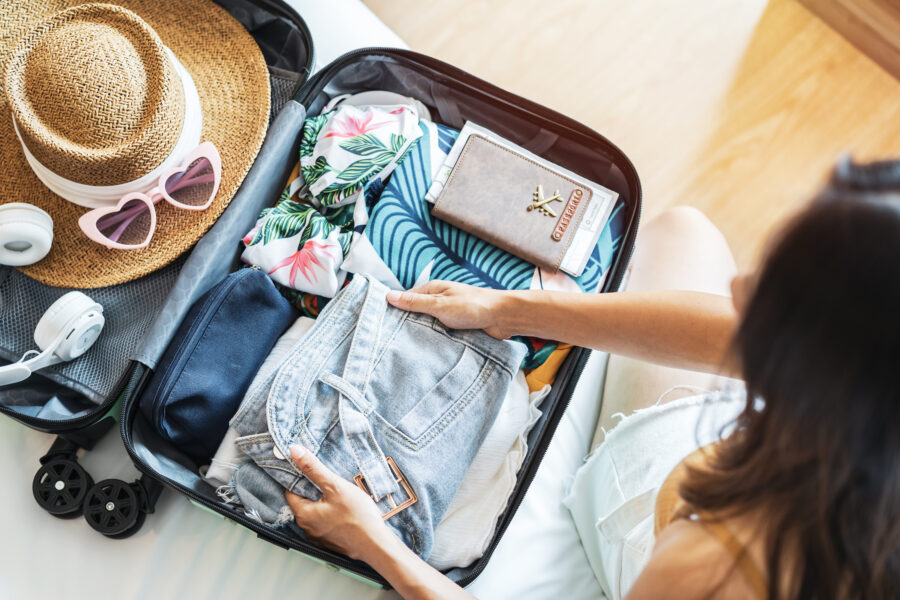
Where you put your AirTag inside your luggage really makes a difference. The right protective case keeps your tracker safe, and smart placement helps prevent theft and keeps your AirTag connected.
Where to Hide AirTags in Your Luggage
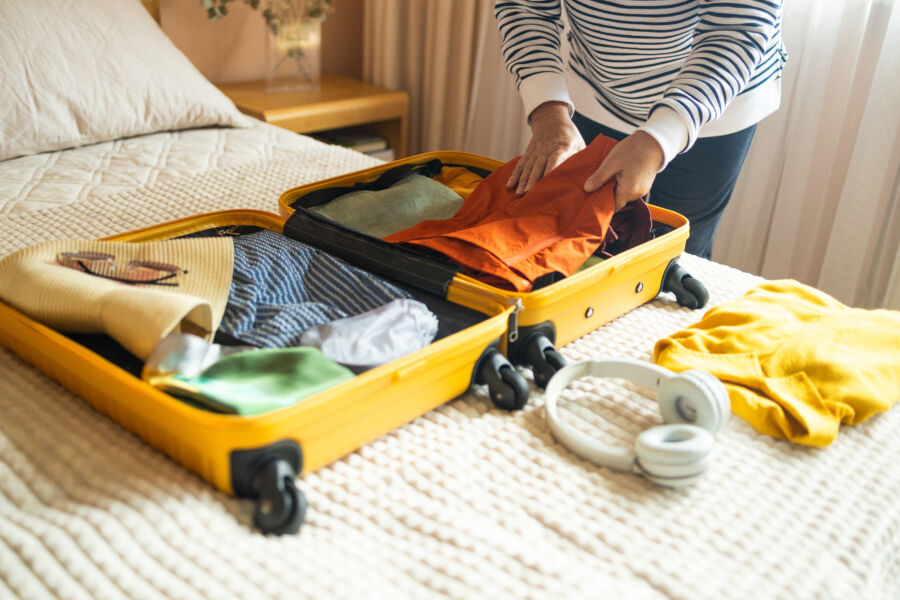
Always place your AirTag inside your luggage, not on the outside. External spots just invite trouble and make it easy for someone to snatch your tracker at baggage claim.
The best spot? A zippered interior pocket where the AirTag sits flat against the lining. It’s protected and hidden. For carry-ons, try tucking it in a shoe or inside a toiletry bag for extra stealth.
Some travelers stash their AirTag in the bottom corner of the suitcase, wrapped in clothes for padding. This works well for checked bags that get tossed around. Avoid putting it near metal zippers or laptop compartments—those can block the Bluetooth signal.
If your bag has a removable lining, you can make a hidden compartment. Just make sure you can still get to it. The goal is to balance hiding the AirTag and being able to grab it if you need to.
Using AirTag Holders and Cases

A good AirTag holder shields your tracker from bumps and moisture while you’re on the move. The Belkin AirTag case pops up often because it’s got a sturdy plastic shell and a key ring that actually feels secure. These cases don’t add much size but still manage to protect your AirTag pretty well.
Luggage tag holders built for AirTags are another route. They look like normal ID tags but hide a slot for your tracker. It’s handy if you want to grab your AirTag fast, no need to dig through your bag.
Some cases stick right onto your suitcase wall with adhesive. This stops the AirTag from rattling around when baggage handlers get a little too enthusiastic. Just double-check the adhesive—some brands aren’t as sticky as you’d hope after a few flights.
If your suitcase has a built-in tracker compartment, you might skip a separate case, but I’d still use one for extra protection. If you’re headed somewhere humid or sandy, a waterproof case is a smart move.
Protection Against Loss or Theft

Before checking your bag, turn on Lost Mode in the Find My app. That way, you’ll get notified if your AirTag moves somewhere unexpected, and you can see updates as your luggage moves through the airport.
Add your contact info in the AirTag’s settings—just your phone and email, though. Skip your home address for privacy. Anyone with an iPhone can tap the AirTag and see your details without getting access to everything else.
Stick one AirTag on each checked bag if you’re traveling with a few. That way you can track each bag separately and spot which one’s gone missing. It’s a little extra, but honestly, the peace of mind is worth it.
Keep Bluetooth on for your whole trip. That’s how your AirTag talks to other iPhones and updates its location. Check the battery before you leave—AirTags use CR2032 batteries that last about a year, but they do die eventually.
Tips for Tracking Luggage When Abroad and Offline

Your AirTag doesn’t need your phone to have data, but you’ll need to tweak your approach if you’re traveling internationally without roaming. It’s all about knowing when and how to check for updates, and not expecting miracles if you’re offline most of the time.
Pre-Trip Preparation Without Data Roaming

Set up your AirTag in the Find My app before you leave home, while you still have Wi-Fi. Give each tag a clear name—like “Blue Suitcase” or “Checked Bag London”—so you’re not second-guessing yourself at baggage claim.
Turn on Lost Mode before you fly. If you won’t have cell service, use your email instead of a phone number, since you can always check email when you find Wi-Fi. Anyone with an iPhone can scan your AirTag and see your info, but not your private data.
Take a screenshot of your bag’s last known spot before you board. If you can’t get updates right away, at least you’ll know where it was last. And don’t forget—leave Bluetooth on, even if you turn off cellular data. That’s the only way your phone will pick up AirTag signals nearby.
Download offline maps for your destination before you go. If your AirTag pings a location but you can’t get online, you’ll still be able to check where your bag ended up.
Leveraging Airport Wi-Fi for Location Updates

As soon as you connect to airport Wi-Fi, the Find My app should refresh and show where your AirTag was last picked up by the network. Just open the app and give it a few seconds to catch up.
Here’s the thing—the location might not be current if your bag’s buried in a cargo hold or surrounded by metal. Always check the “last updated” time in the app to see how recent the info actually is.
Honestly, baggage claim is where you’ll get the best updates. Tons of iPhone users walk through, so your AirTag pings off their phones even if you’re offline. Connect to Wi-Fi as soon as you land and keep Find My open as you head to the carousel—you’ll usually see the location update almost live as people pass by your bag.
Some terminals have lousy Wi-Fi. If you’re not getting updates, try moving closer to a gate or coffee shop. The signal’s usually stronger there.
What to Do if Your AirTag Location Is Not Updating

If your AirTag isn’t updating, don’t freak out. These trackers need other iPhones nearby to relay info, so if your bag’s in a quiet corner or stuck in a metal crate, updates might lag.
Double-check that Bluetooth is on. That’s essential for tracking when you’re near your bag. If airplane mode’s blocking Bluetooth, switch it back on.
Hop onto any Wi-Fi you can find and refresh the Find My app by pulling down on the screen. Sometimes it just needs a little push to check for new data.
If you go hours without an update, that last timestamp becomes your best evidence. Show airline staff the last location from your AirTag—I’ve seen agents actually take screenshots and help track it down. It’s way more convincing than just saying, “I think it’s here somewhere.”
Keep checking whenever you find Wi-Fi. Sometimes your bag pops up with a new location after it passes by someone with an iPhone. The Find My network works in the background, so even if you’re not glued to your phone, it’s still trying to track things down.
See Related: Best Travel Bags for Suits: Ultimate Guide to Staying Wrinkle-Free
Advanced Features and Troubleshooting
Lost Mode adds another layer of security to your AirTag. The CR2032 battery usually lasts about a year, and sharing your AirTag’s location can speed up luggage recovery—even if you’re traveling without data roaming.
Activating Lost Mode and Custom Messages

Lost Mode turns your AirTag into a digital lost-and-found. Open Find My, pick your AirTag, and tap “Enable” under Lost Mode.
Add your phone or email. Anyone with an iPhone or NFC Android can tap your AirTag and see your contact info—no extra apps needed.
Here’s something most people don’t realize: Lost Mode works through Apple’s Find My network, so you don’t need data roaming. The AirTag pings nearby Apple devices, and those devices send the location back to you through their own connection.
Customize the message that pops up when someone finds your AirTag. Keep it short—“Reward if found” or just your number. Personally, I’ve had better luck adding “URGENT: Lost luggage” when flying.
The AirTag notifies you when the Find My network detects it in Lost Mode. Just remember, this only works if there are other iPhones nearby.
Sharing Your AirTag Location with Airlines

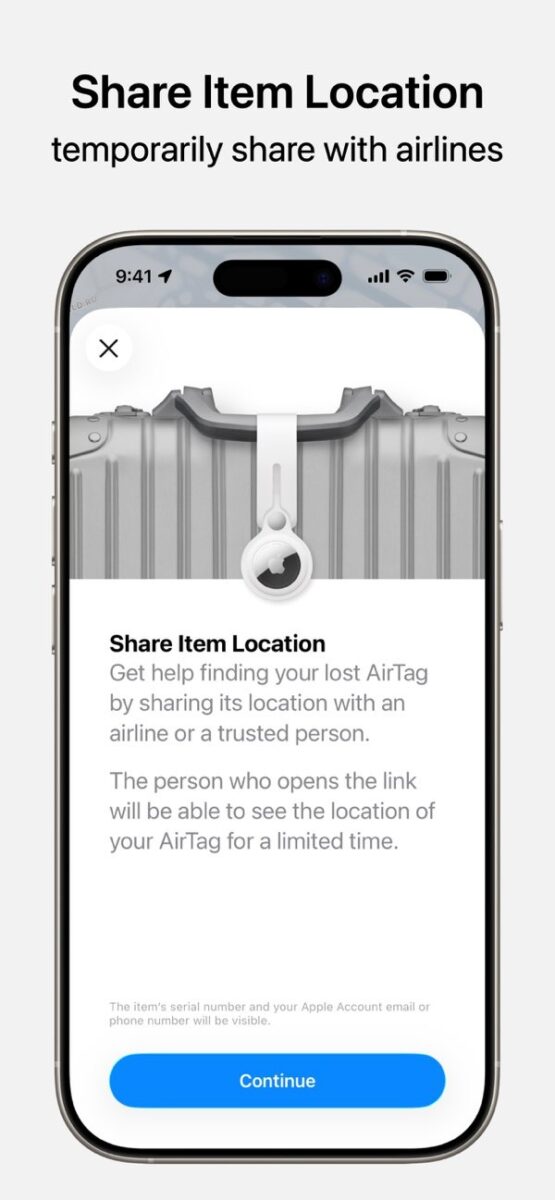
You can share your AirTag’s location with airline staff. In Find My, tap your AirTag and hit “Share Item Location.”
You’ll get a link that works for anyone, even if they don’t use Apple devices. It shows your AirTag’s spot on a map and updates automatically. This comes in handy with lost luggage claims, since airline employees can see your bag’s location without needing your phone.
The link expires after a week, but you can cut it off anytime. Baggage claim staff appreciate real-time tracking—they often don’t have anything close to that in their own systems.
Some airlines now accept AirTag locations as official evidence for lost bags. Having that link ready can really speed things up.
Battery Life and Maintenance Essentials

Your AirTag runs on a CR2032 battery, and with normal use, it’ll last about a year. Your iPhone sends you a heads-up when the battery’s low, usually with enough time to swap it before it dies.
Changing the battery is quick—press down on the silver back, twist counterclockwise, and pop it off. Drop in a new CR2032 (positive side up), then twist the cover back on.
Stick with genuine CR2032 batteries from brands you trust. Cheap ones die fast or leak. I always keep a spare in my bag—finding a dead AirTag at the airport is the worst.
The Find My app shows battery status, but only when your AirTag is close enough to your phone. Check before you travel, especially if you haven’t used that tag in a while. Water resistance is IP67, so your AirTag can handle quick splashes, but don’t toss it in a pool or through the wash.
Comparing AirTag With Other Luggage Tracking Alternatives
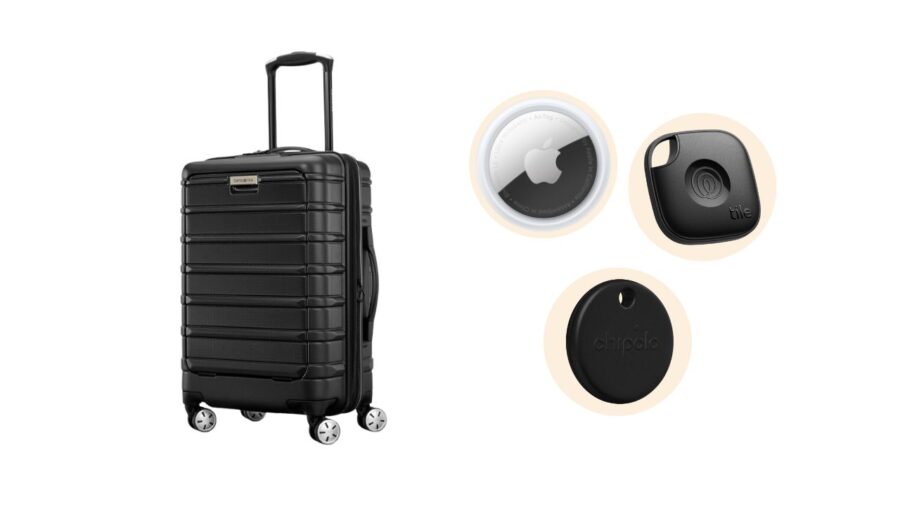
AirTag uses Apple’s Find My network, while Tile and Chipolo rely on their own systems. Each has its perks, and knowing the differences helps you pick what fits your travel needs—especially if you’re not in the Apple ecosystem or travel with Android users.
How Does AirTag Stack Up Against Tile and Chipolo

Tile trackers use their own network, so updates depend on how many people nearby have the Tile app. That’s a much smaller crowd than Apple’s Find My. The Tile Pro is louder than AirTag and works with both iPhone and Android.
Chipolo trackers come in two types. The regular Chipolo uses its own network like Tile, but the Chipolo One Spot works with Apple’s Find My, just like AirTag. It’s a solid alternative if you want Find My tracking but not Apple’s hardware.
The main difference is network size. Apple’s Find My has hundreds of millions of devices worldwide.
Tile’s network is way smaller, so you get fewer updates in airports and hotels. If you’re tracking luggage in busy places, AirTag usually wins for reliability.
Compatibility With Non-Apple Devices and Networks

AirTag only works with iPhones and iPads on iOS 14.5 or newer. You can’t track luggage from an Android phone at all. That’s a dealbreaker if you use Android or travel with someone who needs access to tracking.
Tile supports both iPhone and Android through its own app. That makes it better for families with mixed devices or if you plan to switch phones. The experience is pretty similar on both platforms.
Chipolo’s regular trackers are cross-platform, but the One Spot only works with Apple devices. Think about who needs to track your luggage before you buy.
If everyone’s got an iPhone, AirTag or Chipolo One Spot are fine. If you’ve got Android users, go with regular Tile or Chipolo instead.
See Related: Under-Seat Cabin Bags: Top Space-Saving Options for Summer Travel
Frequently Asked Questions
AirTags can track your luggage without needing your phone to have data roaming, since they rely on nearby Apple devices to ping location updates. The battery lasts about a year, and you’ll need Bluetooth turned on, but Android users face some limitations.
Can AirTags still be located effectively when my iPhone is not connected to data roaming while traveling abroad?
Your AirTag keeps tracking your luggage just fine, even if you turn off data roaming on your iPhone. The neat part? Your AirTag doesn’t really care if your phone’s online or not.
When you’re traveling, your AirTag sends out Bluetooth signals to any nearby iPhone in the huge Find My network. Other people’s phones pick up the signal and quietly send the location to Apple’s servers. Then, whenever your iPhone finds WiFi—at the airport, your hotel, maybe a random coffee shop—the Find My app updates with your bag’s latest spot.
I’ve tried this a bunch with my own luggage, and honestly, it’s a relief. You can turn off cellular data to dodge those wild roaming fees, and the AirTag still does its thing.
If your bag ends up somewhere with no iPhone users around (which, let’s face it, doesn’t happen much), you might see a delay in updates.
How does the AirTag’s location technology function when there’s no access to the internet?
The AirTag never connects to the internet itself. Instead, it uses Bluetooth to ping nearby Apple devices, so it keeps working even in airplane mode or places with zero cell service.
It’s kind of like a relay. Your AirTag keeps broadcasting a secure Bluetooth signal—think about 800 feet or so. Any iPhone that wanders by grabs that signal and quietly reports the location to Apple.
Everything’s encrypted, so those iPhone users have no idea they’re helping you out. No notifications, no battery drain, nothing for them to worry about.
When you open the Find My app with WiFi or data, you’ll see where your AirTag last showed up. If someone with an iPhone walked past your checked bag, you’ll get that update—even if your phone was offline at the time.
How can an AirTag remain operational without needing to be recharged, and what is its battery life?
Your AirTag runs on a regular CR2032 battery you can grab at most stores. Apple says it lasts about a year with typical use, and that matches my experience.
No charging required—just swap in a new battery when it’s low. The Find My app gives you a heads-up when the battery’s running down, usually with plenty of warning.
Swapping the battery’s easy: press down on the steel back, twist it off, pop in the new battery, and twist it shut. Done.
The battery lasts so long because the AirTag doesn’t blast out signals all the time. It pings periodically and slips into low-power mode when it’s not being actively tracked.
Is it mandatory to have Bluetooth enabled on my device to maintain tracking capabilities for my AirTag?
Yep, you need Bluetooth on if you want to track your AirTag yourself. There’s really no way around that.
The Find My app uses Bluetooth to talk to your AirTag when you’re close by. If you turn off Bluetooth, your phone can’t pick up your AirTag’s signal or use the precision finding feature.
But here’s a twist: your AirTag can still be tracked by other people’s iPhones even if your Bluetooth is off. So, if your bag is moving through the airport and your phone’s in airplane mode with Bluetooth off, other travelers’ phones will still update its location on the Find My network.
Once you flip Bluetooth back on and connect to WiFi or data, you’ll see all those location updates. I usually just leave Bluetooth on—modern iPhones barely notice it, battery-wise.
Are there any solutions for tracking luggage with an AirTag when using a non-Apple, Android-based device?
Honestly, AirTags just aren’t made for Android users. You won’t be able to set up or track an AirTag from an Android phone, which is a bit of a letdown.
Android phones can still pick up nearby AirTags, but only as a safety thing to prevent unwanted tracking. If you stumble on someone else’s lost bag with an AirTag, you can tap your phone to it using NFC. That’ll show you the owner’s contact info—assuming they’ve bothered to turn on Lost Mode.
If you’re on Android and want to track your luggage, you’re probably better off with something like Tile or Chipolo. Those have their own Android apps and work a lot like AirTags, but the tracking network’s smaller since it depends on other users with the same app, not the massive iPhone crowd.
Some travelers I know end up using both—they toss an AirTag in their bag and have a friend or family member with an iPhone keep tabs on it. It’s not perfect, but it does the trick, especially if you’re booking flights through platforms like Skyscanner and want some kind of luggage tracking.